
From your WordPress dashboard select Bookmakers
1. Introduction
You’ll input key details, offers, features, and branding to create a comprehensive bookmaker profile.
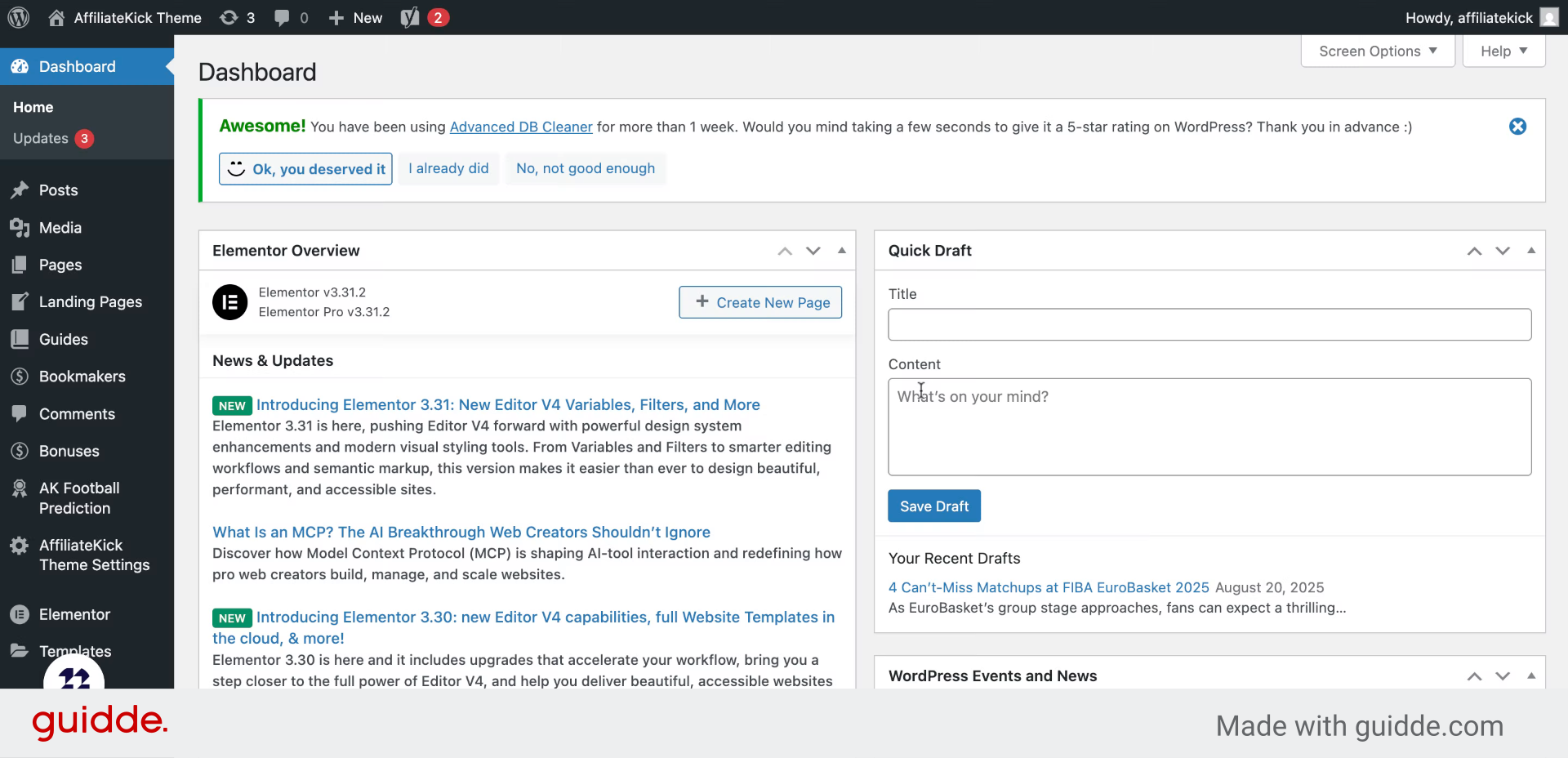
2. Click “Add New”
Start by selecting the option to add a new bookmaker entry to your list.
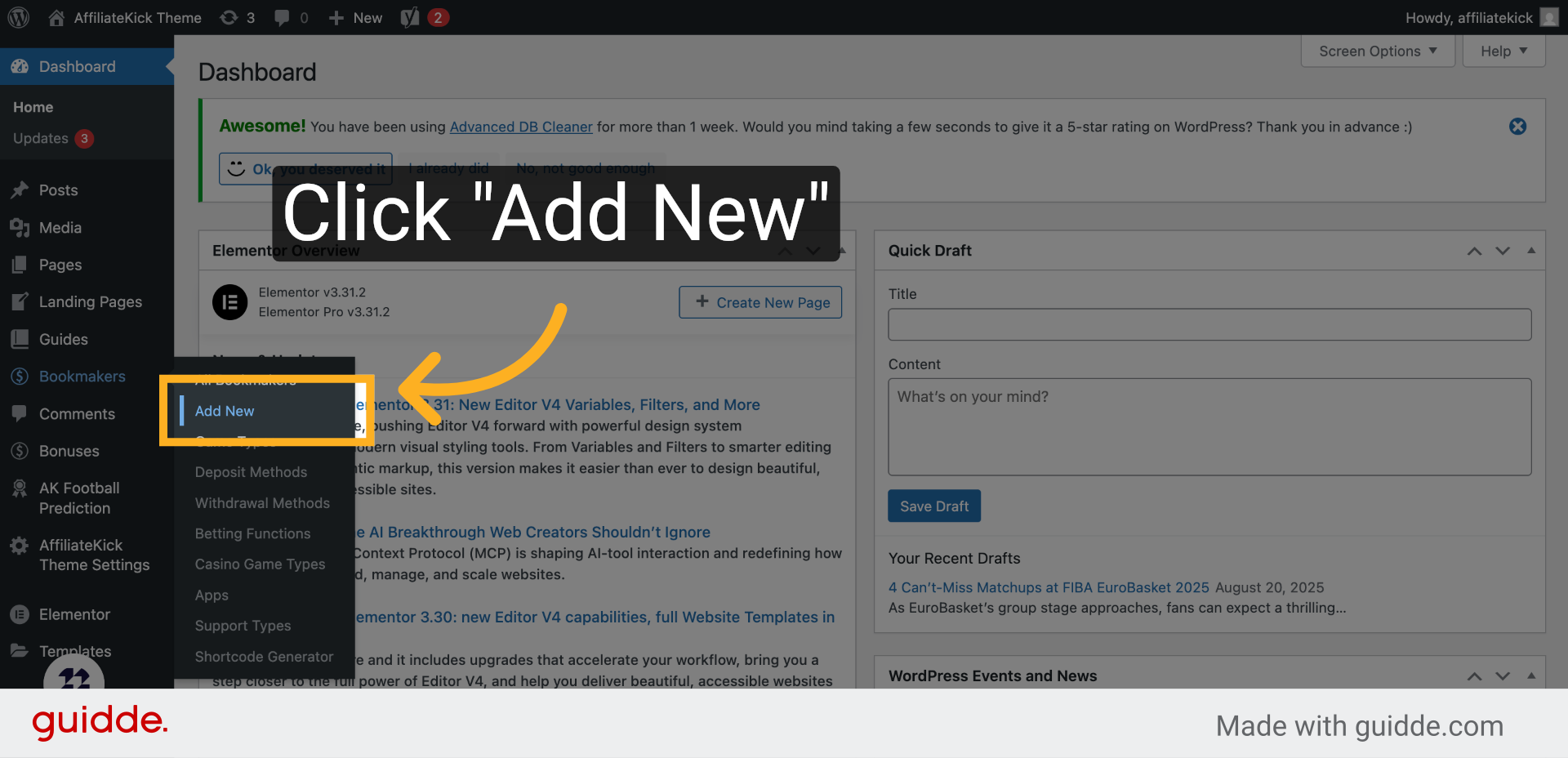
3. Fill “Bookmaker name”
Enter the name of the bookmaker you want to add to your database.
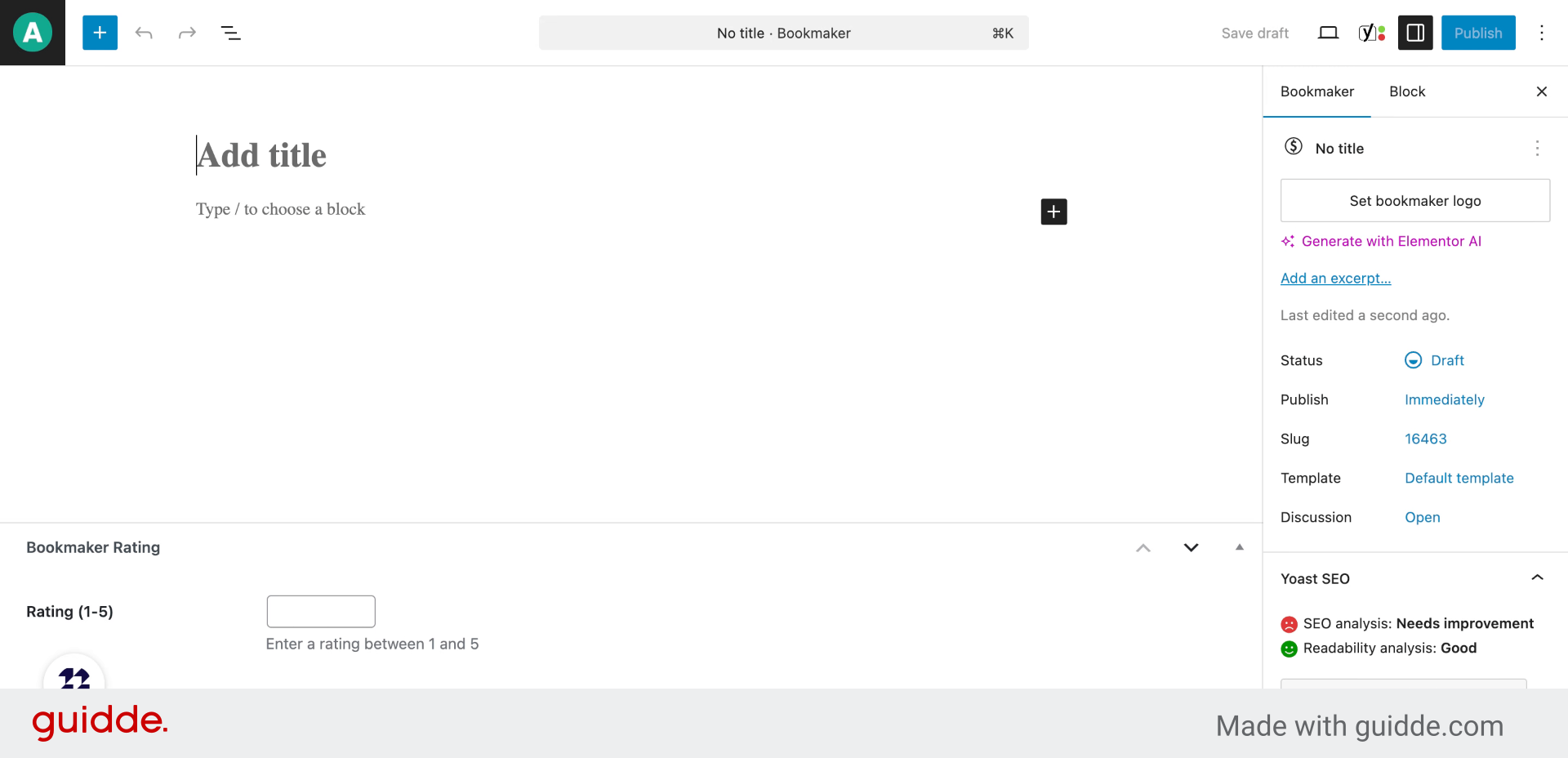
4. Add the review
Add the review of the bookmaker
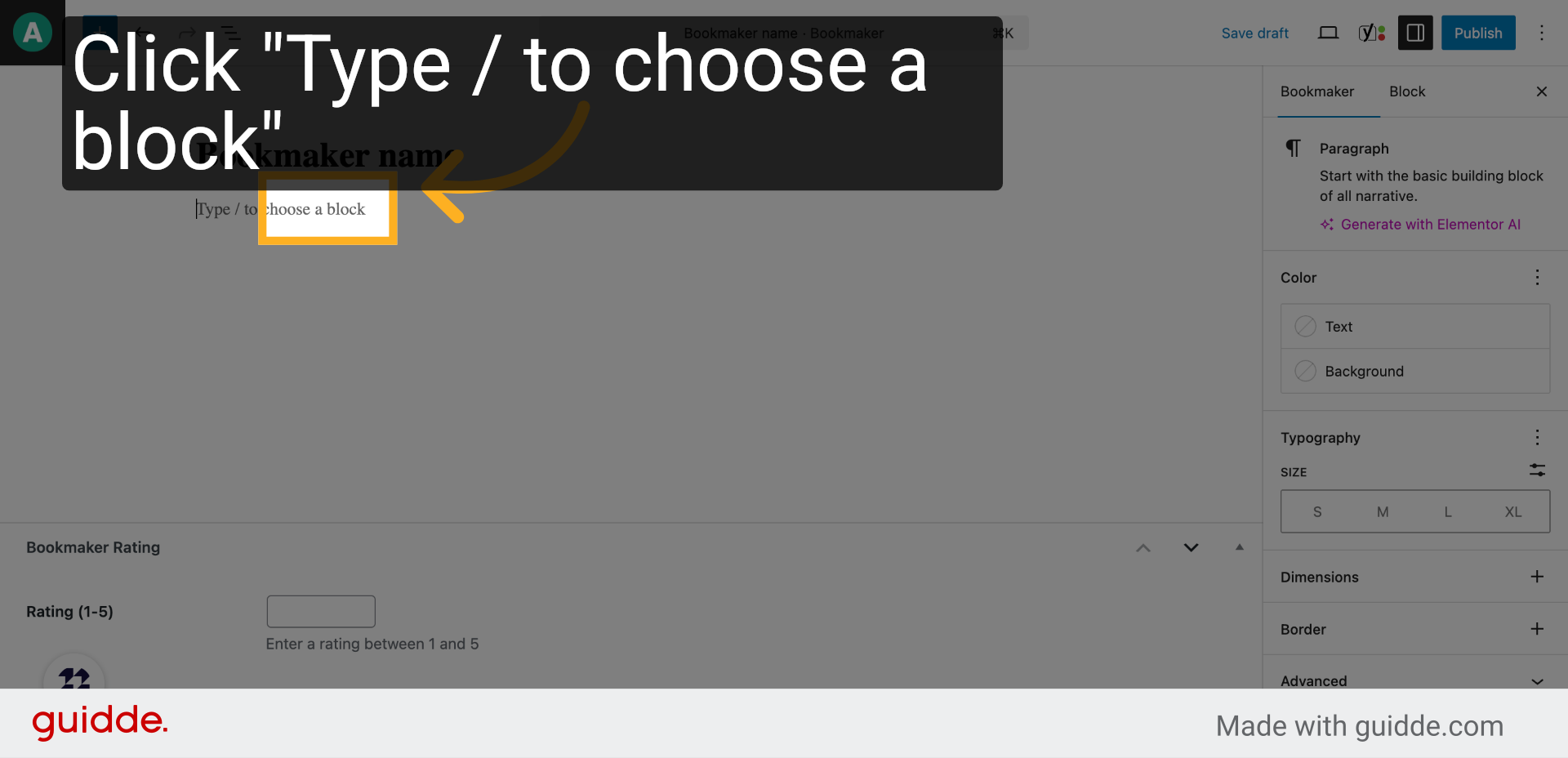
5. “Rating (1-5)”
Choose the rating block to assign a quality score to the bookmaker.
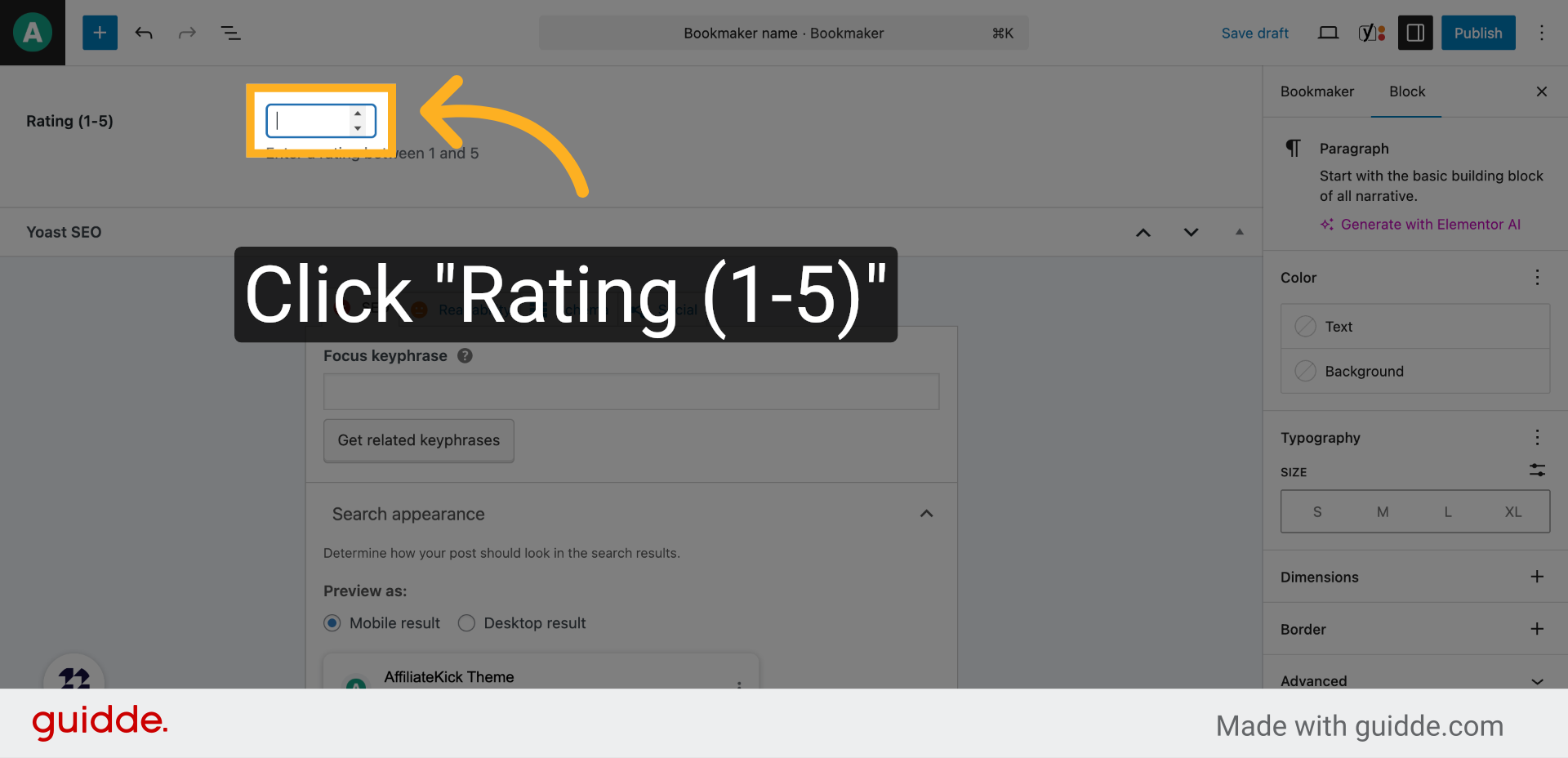
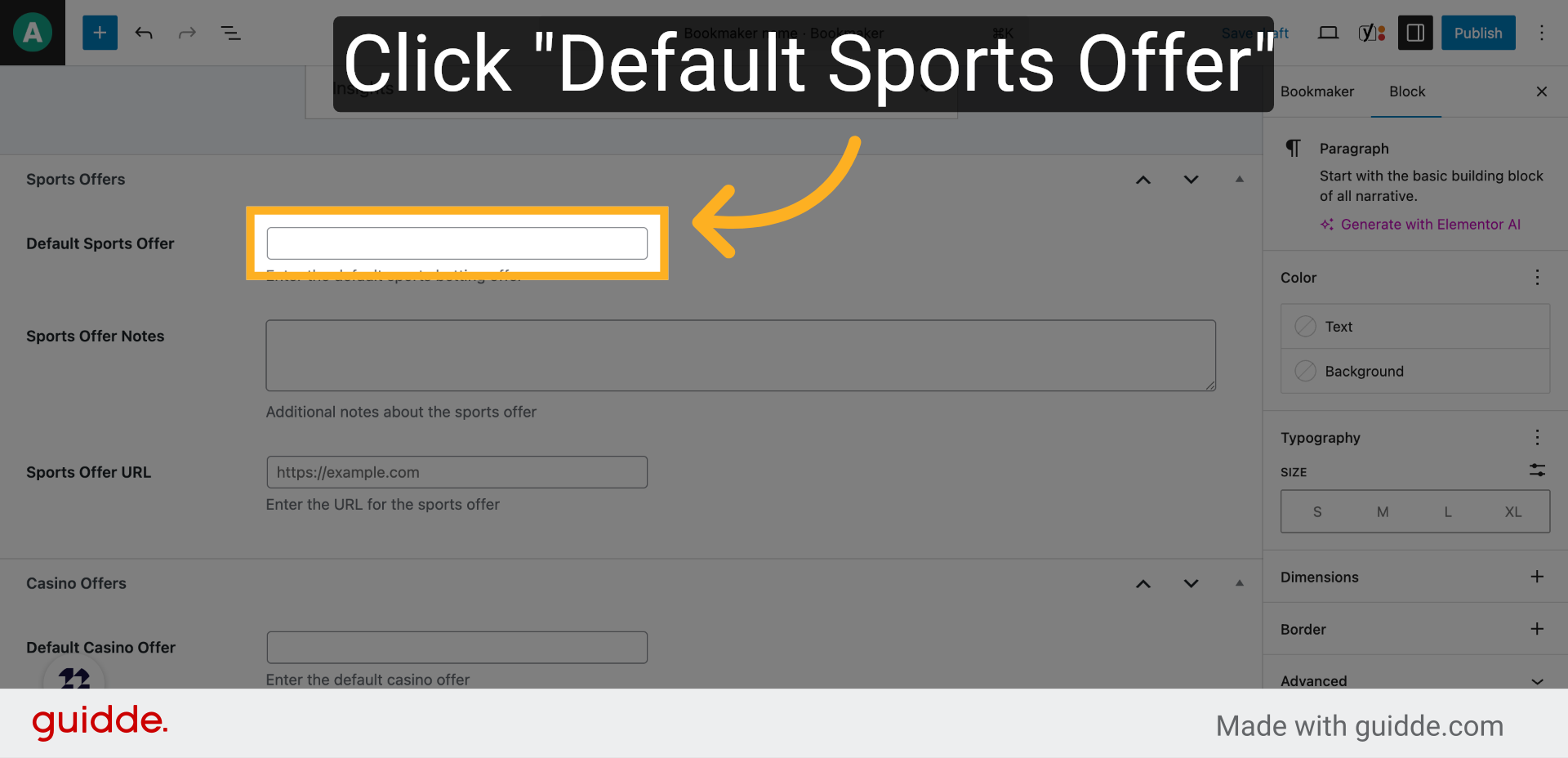
6. Click “Default Sports Offer”
Locate the default sports offer section to add promotional details.
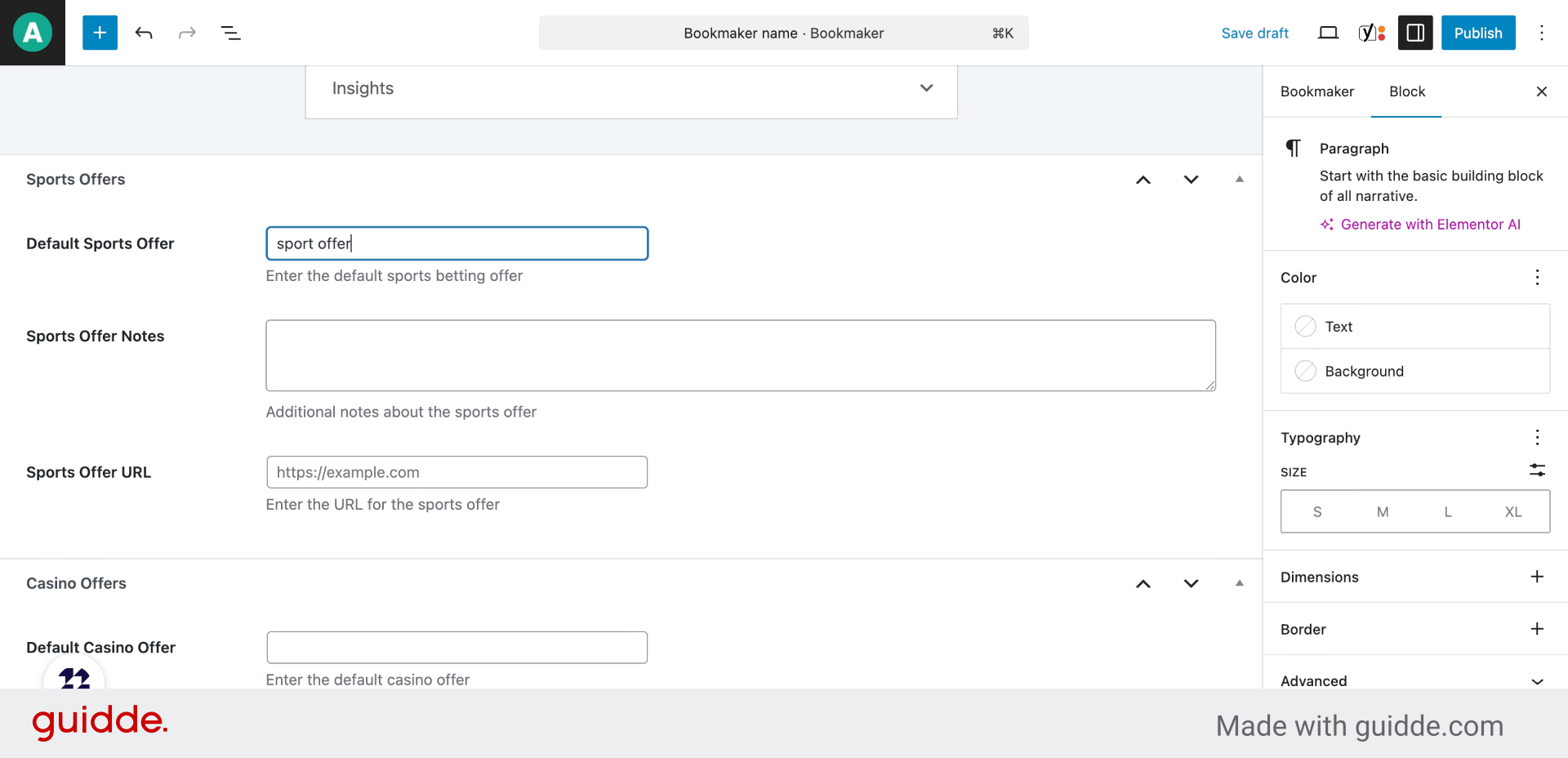
7. Fill “sport offer title”
Provide a clear and engaging title for the sports offer available from the bookmaker.
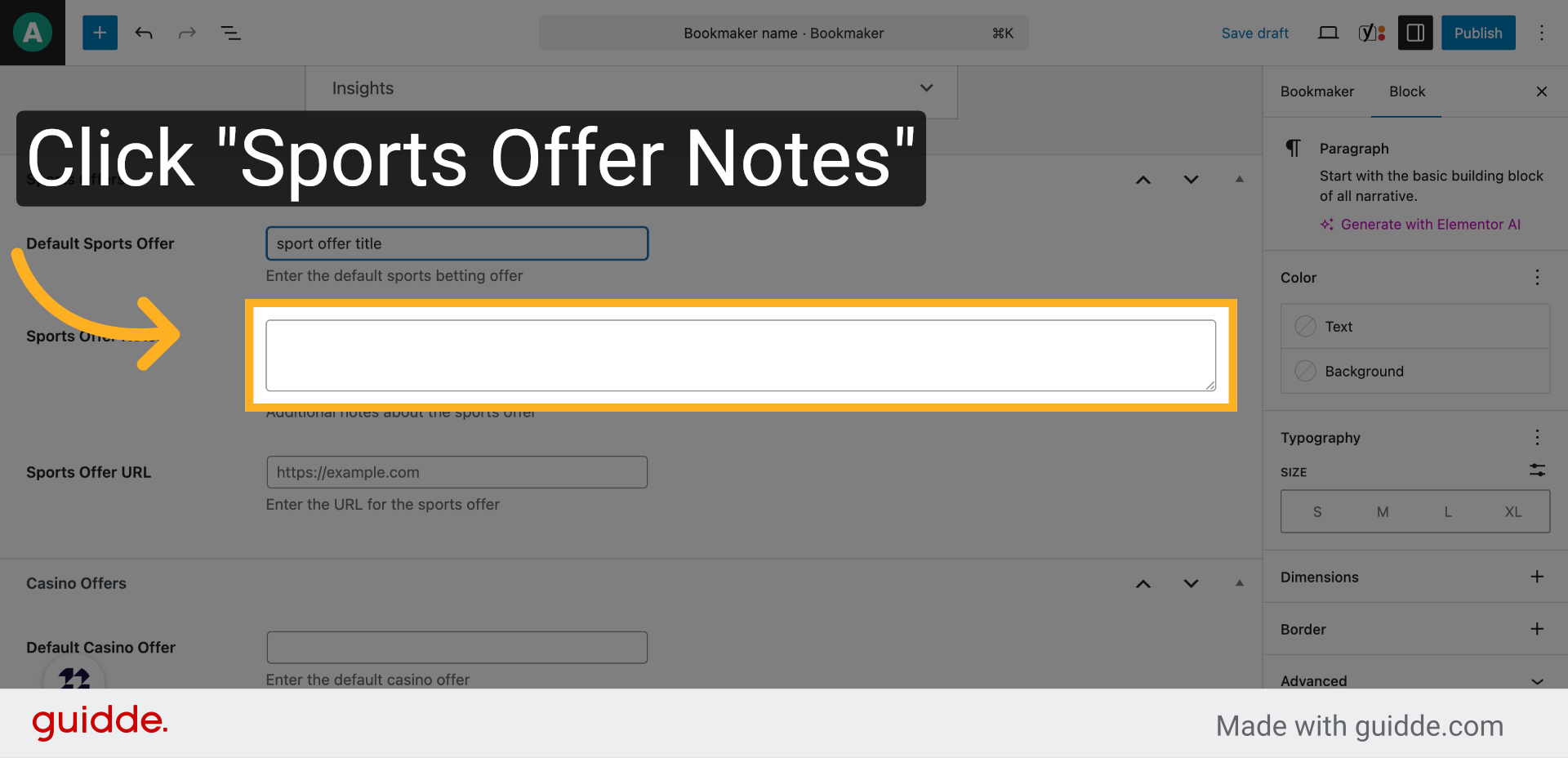
8. Click “Sports Offer Notes”
Access the notes section for the sports offer to add important terms and conditions.
9. Fill “terms and conditions”
Write detailed terms and conditions or notes related to the sports offer.
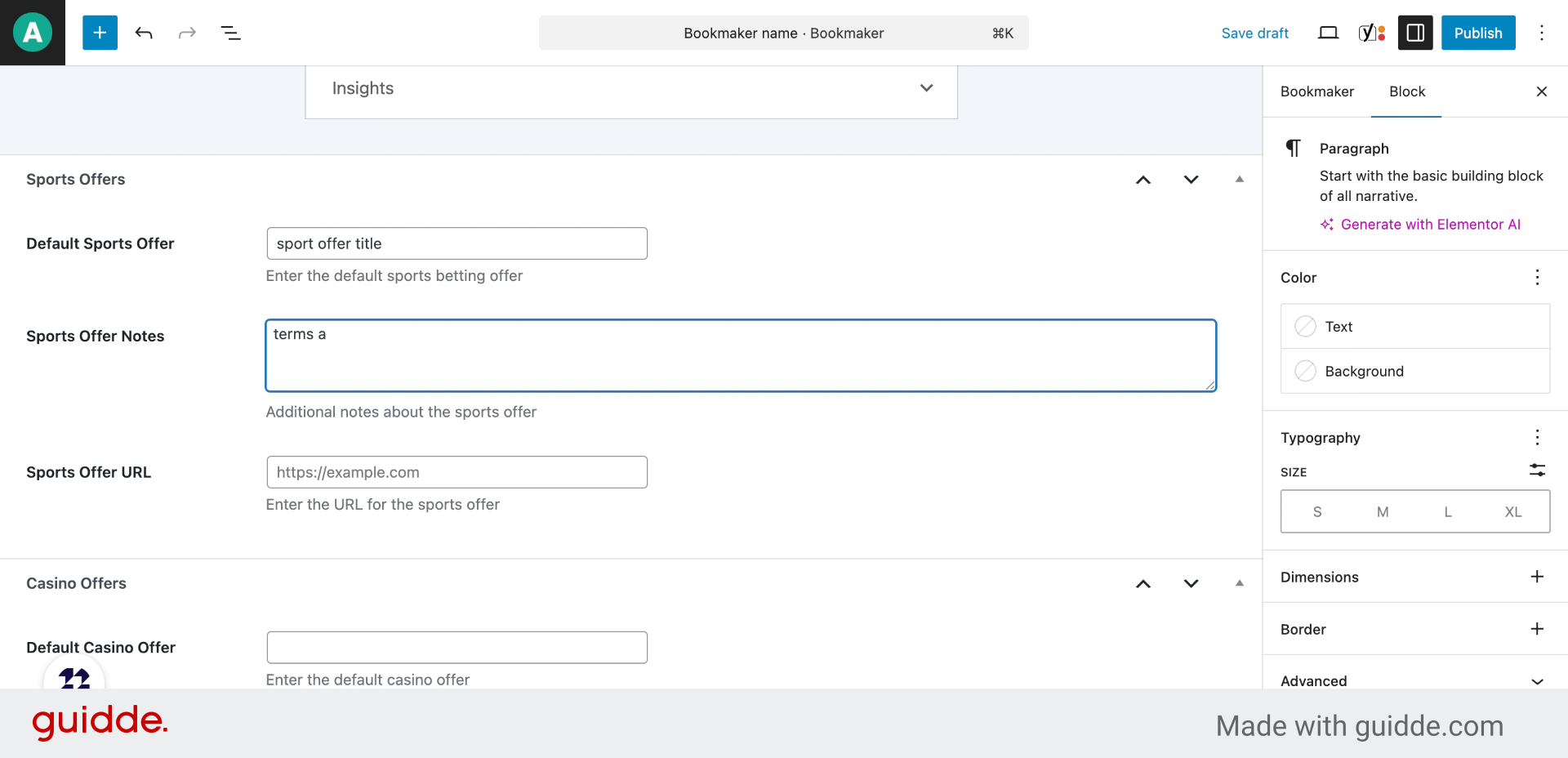
10. Click “Sports Offer URL”
Navigate to the sports offer URL field to link the offer page.
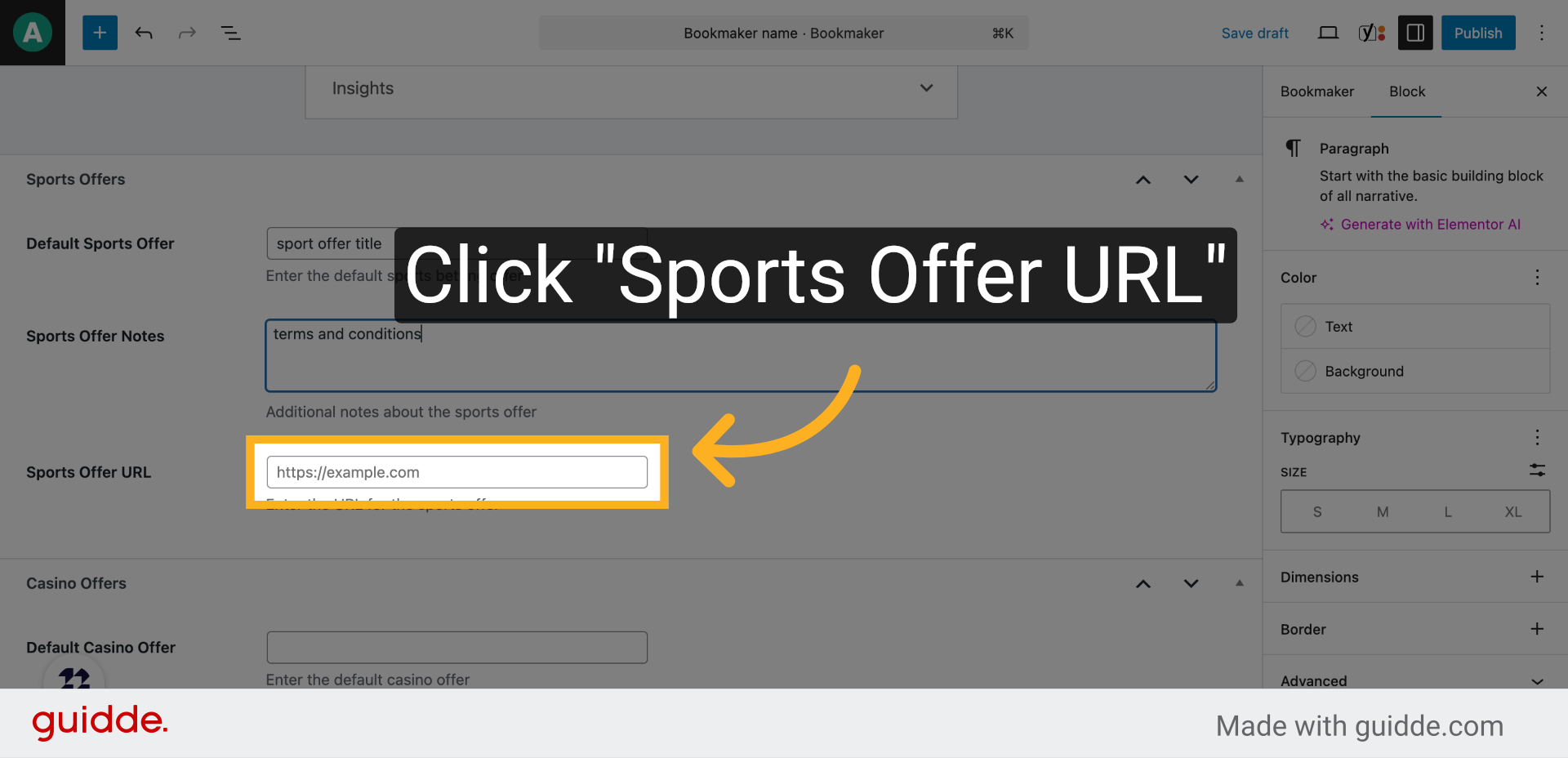
11. Fill “url of the offer”
Enter the full URL directing users to the bookmaker’s sports offer.
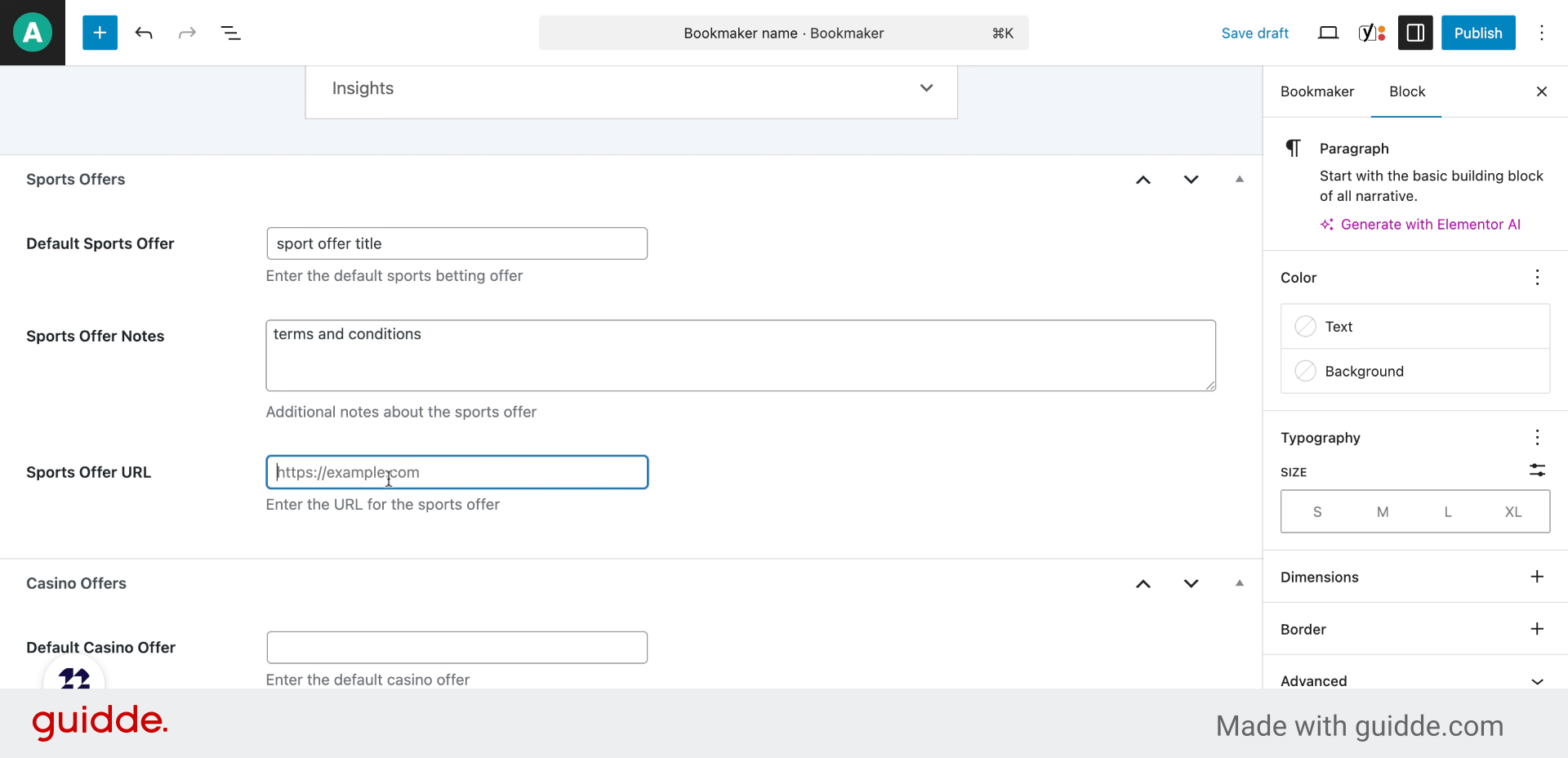
12. Click “Default Casino Offer”
Switch to the default casino offer section to include casino-related promotions.
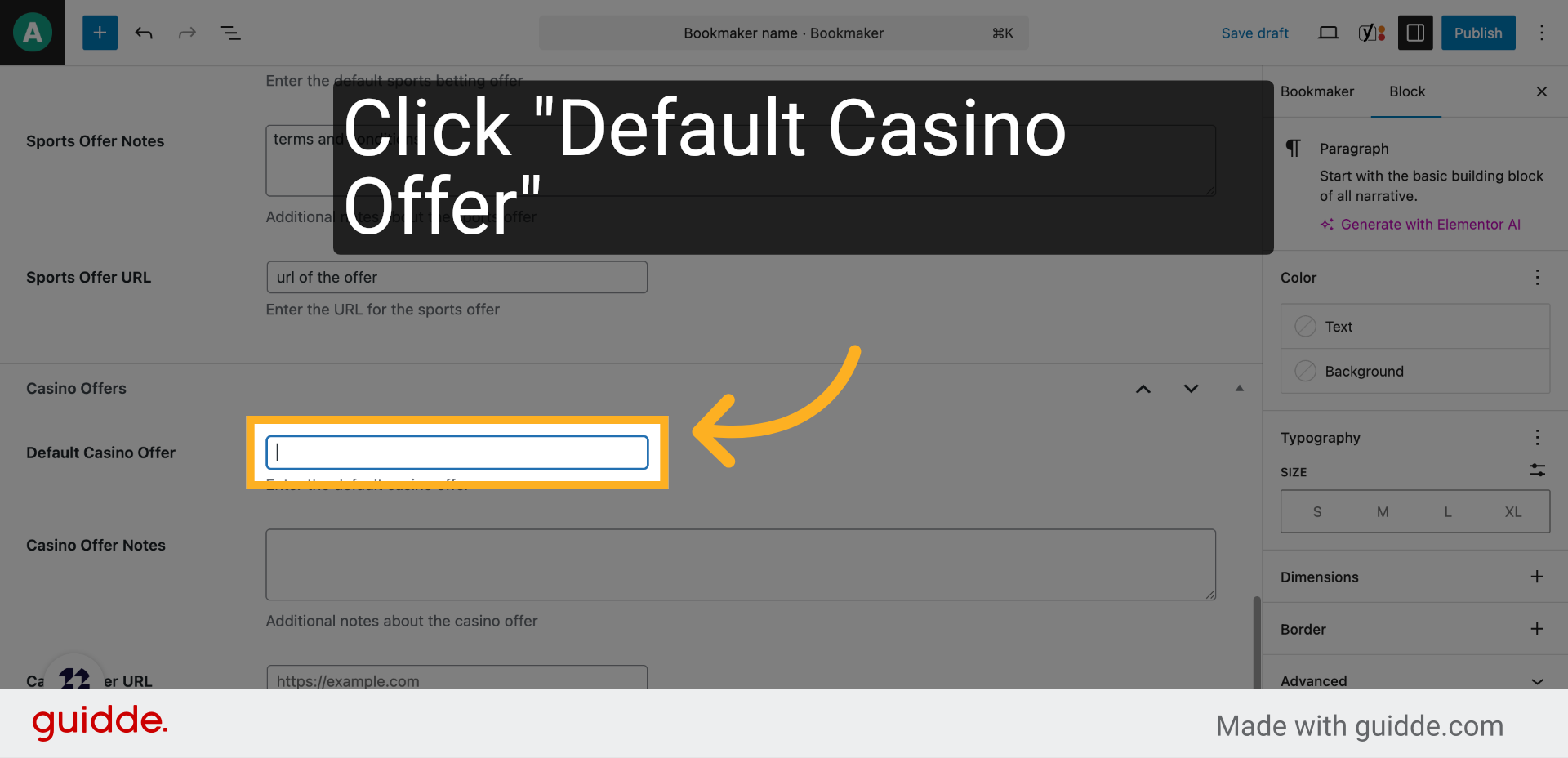
13. Fill “casino offer”
Fill in the casino offer title or description to highlight the promotion.
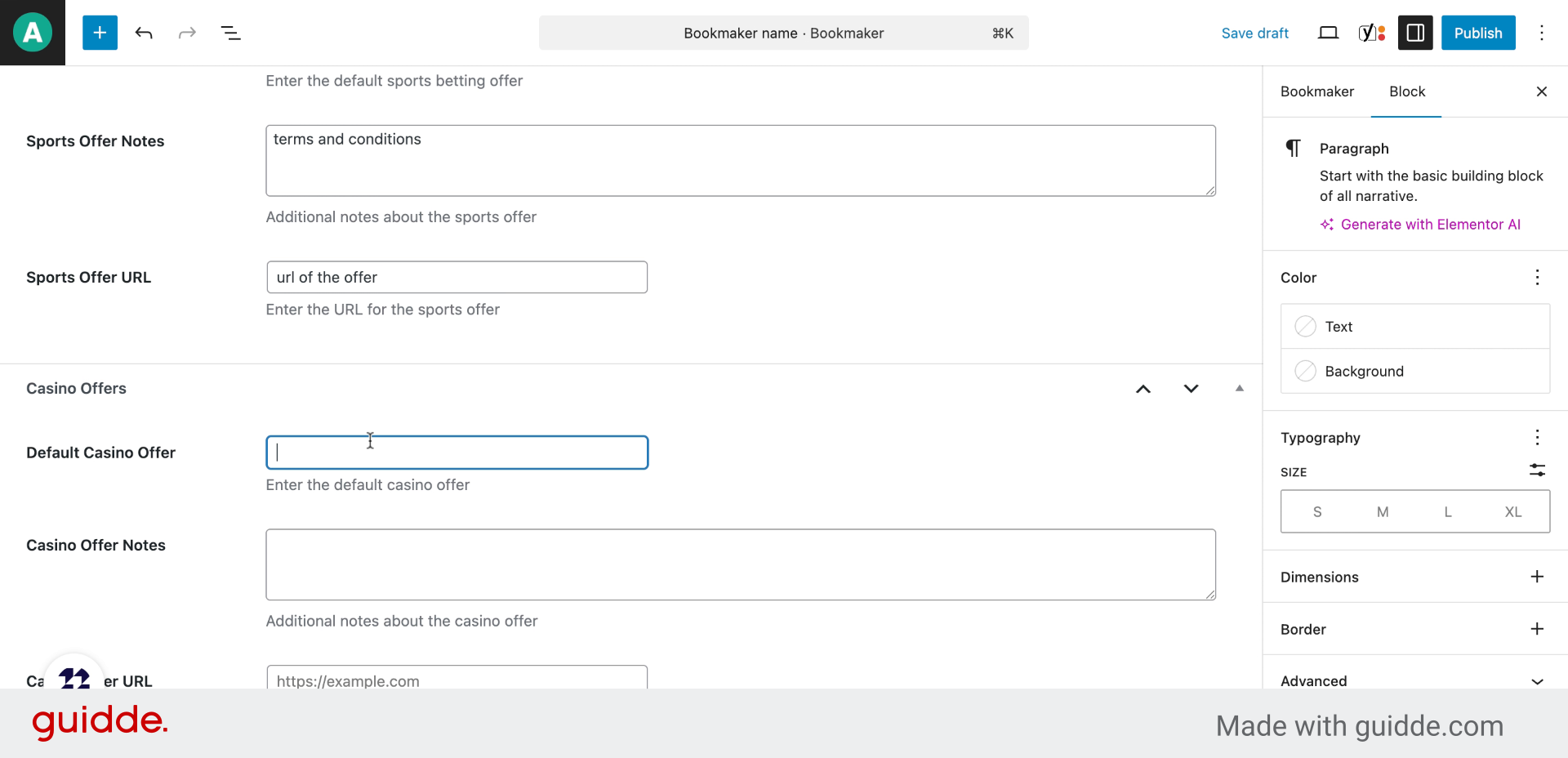
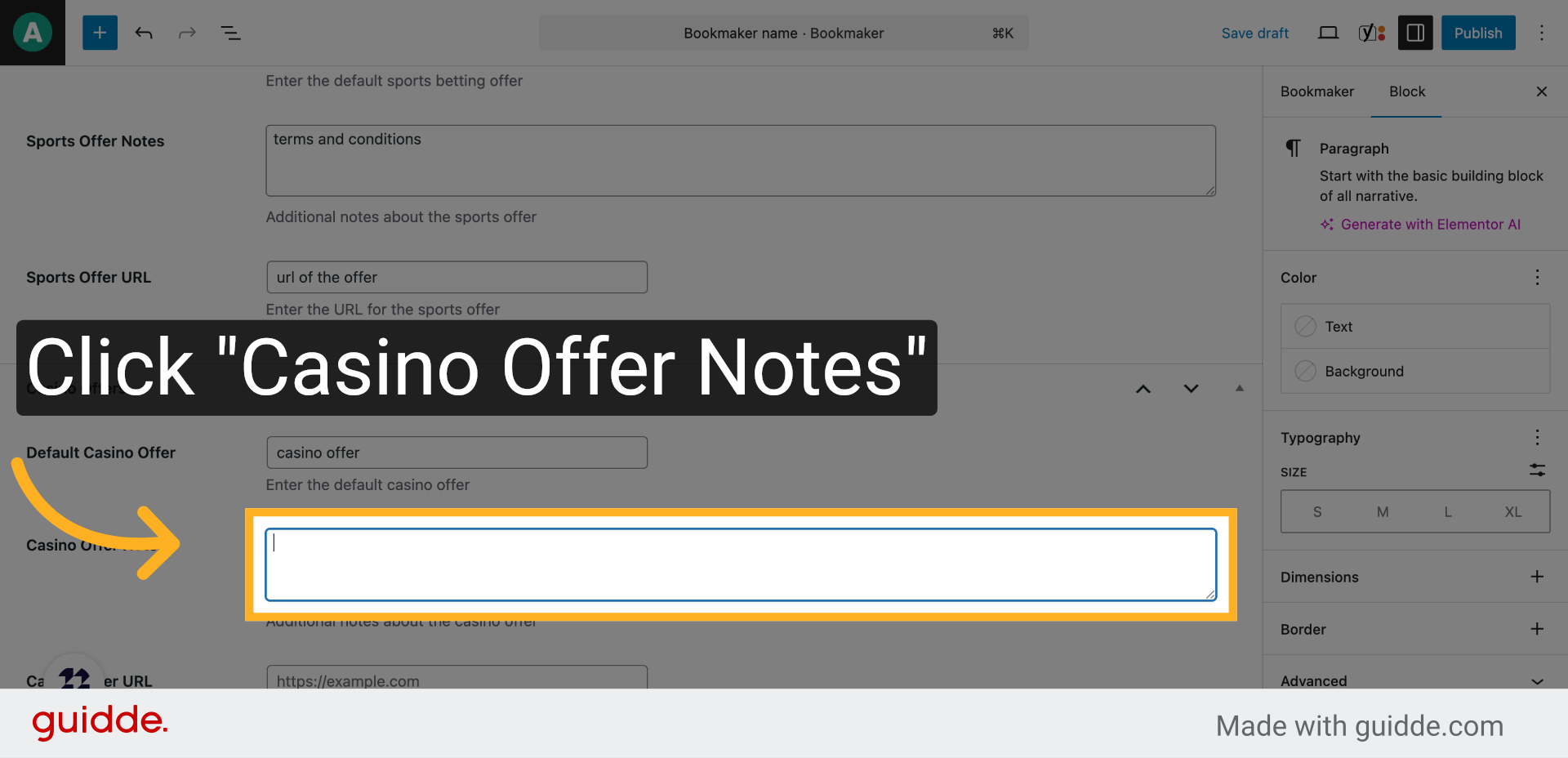
14. Click “Casino Offer Notes”
Open the casino offer notes area to specify terms and conditions for the casino offer.
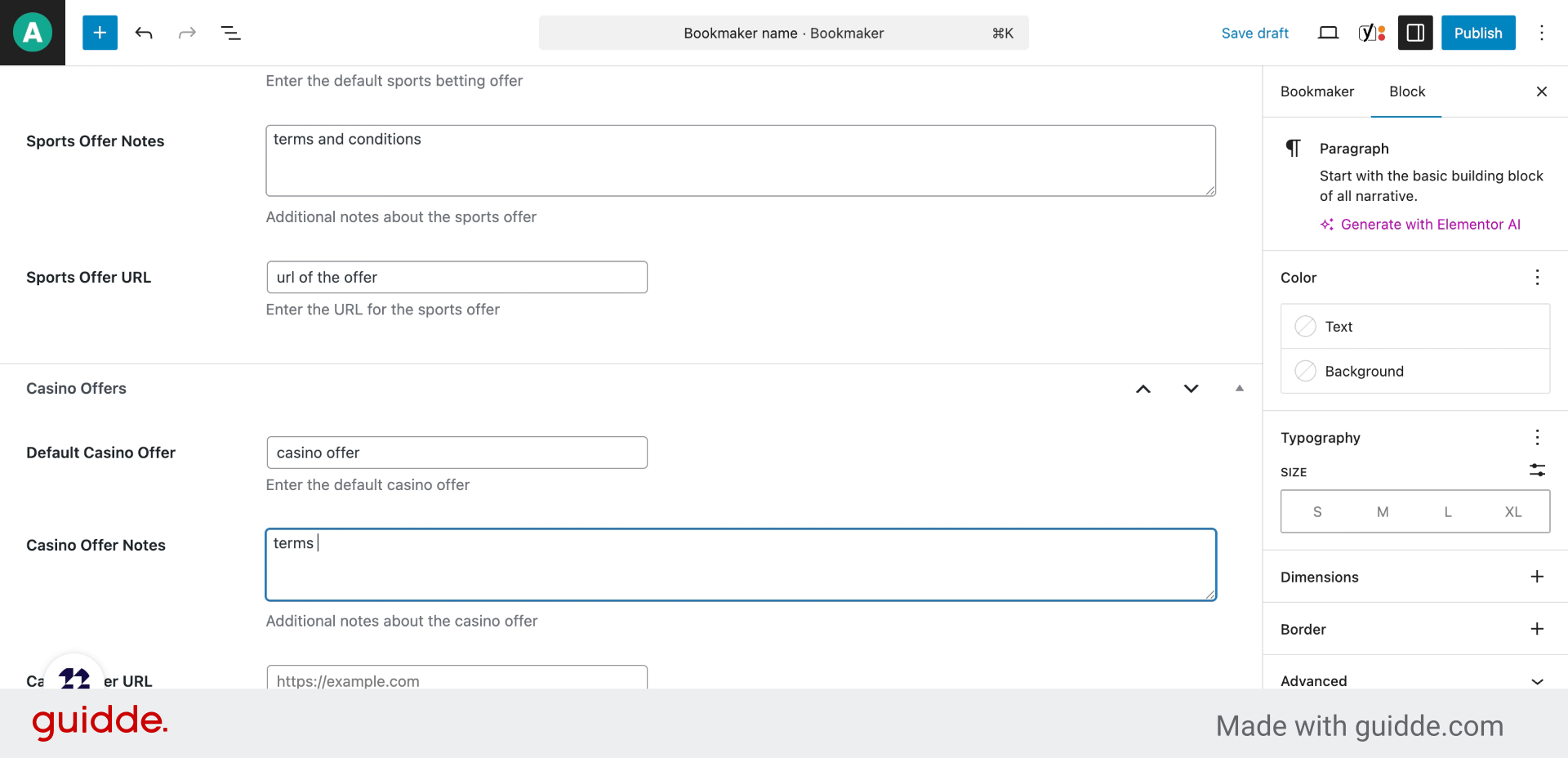
15. Fill “terms and conditions”
Add detailed terms and conditions or important notes for the casino offer.
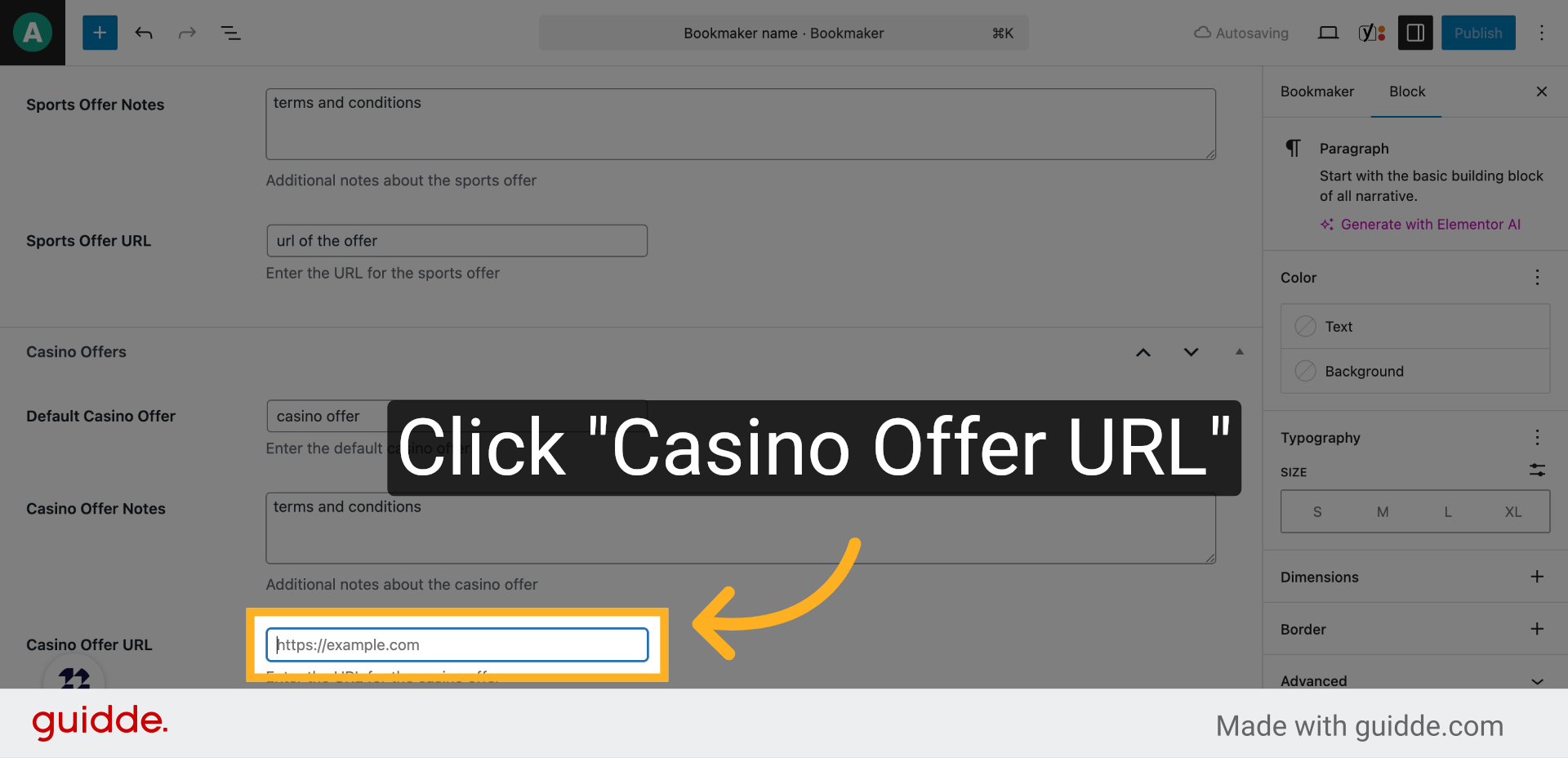
16. Click “Casino Offer URL”
Go to the casino offer URL field to provide a direct link to the casino promotion.
17. Fill “url”
Input the URL that leads users to the casino offer page.
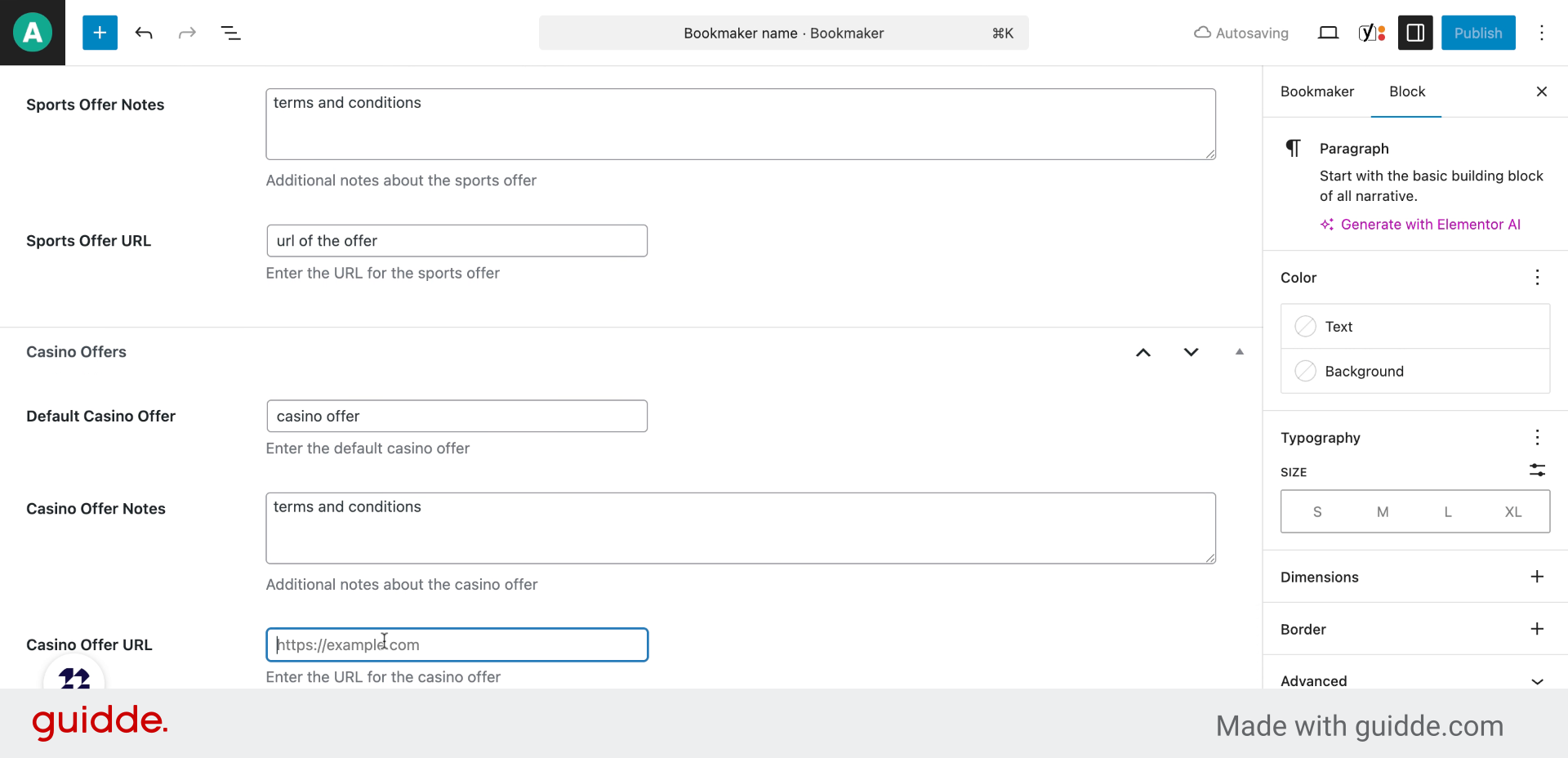
18. Click “Bookmaker”
Find the bookmaker features section to specify available services and options.
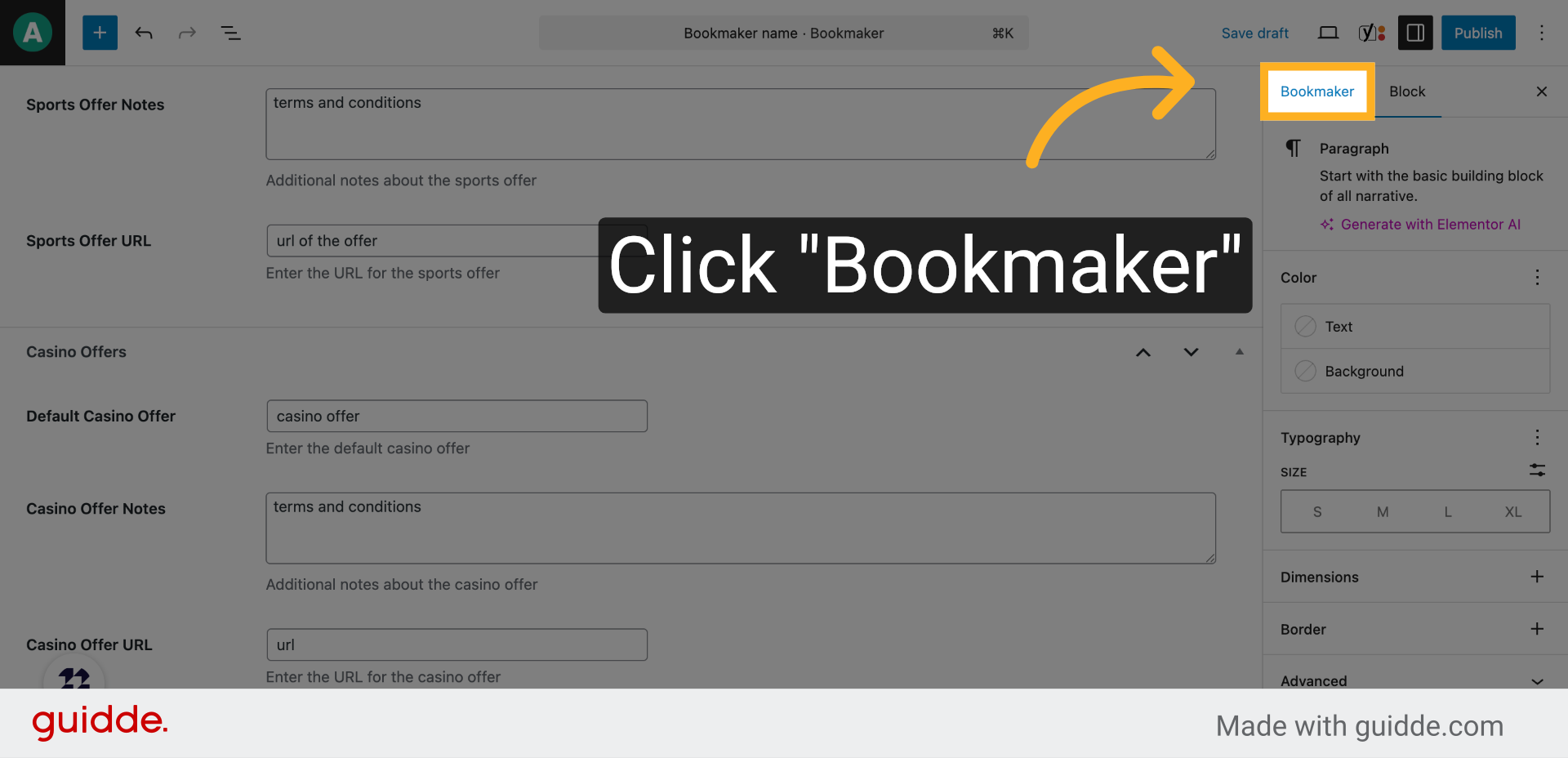
19. Select game types
Select the game types offered by the bookmaker
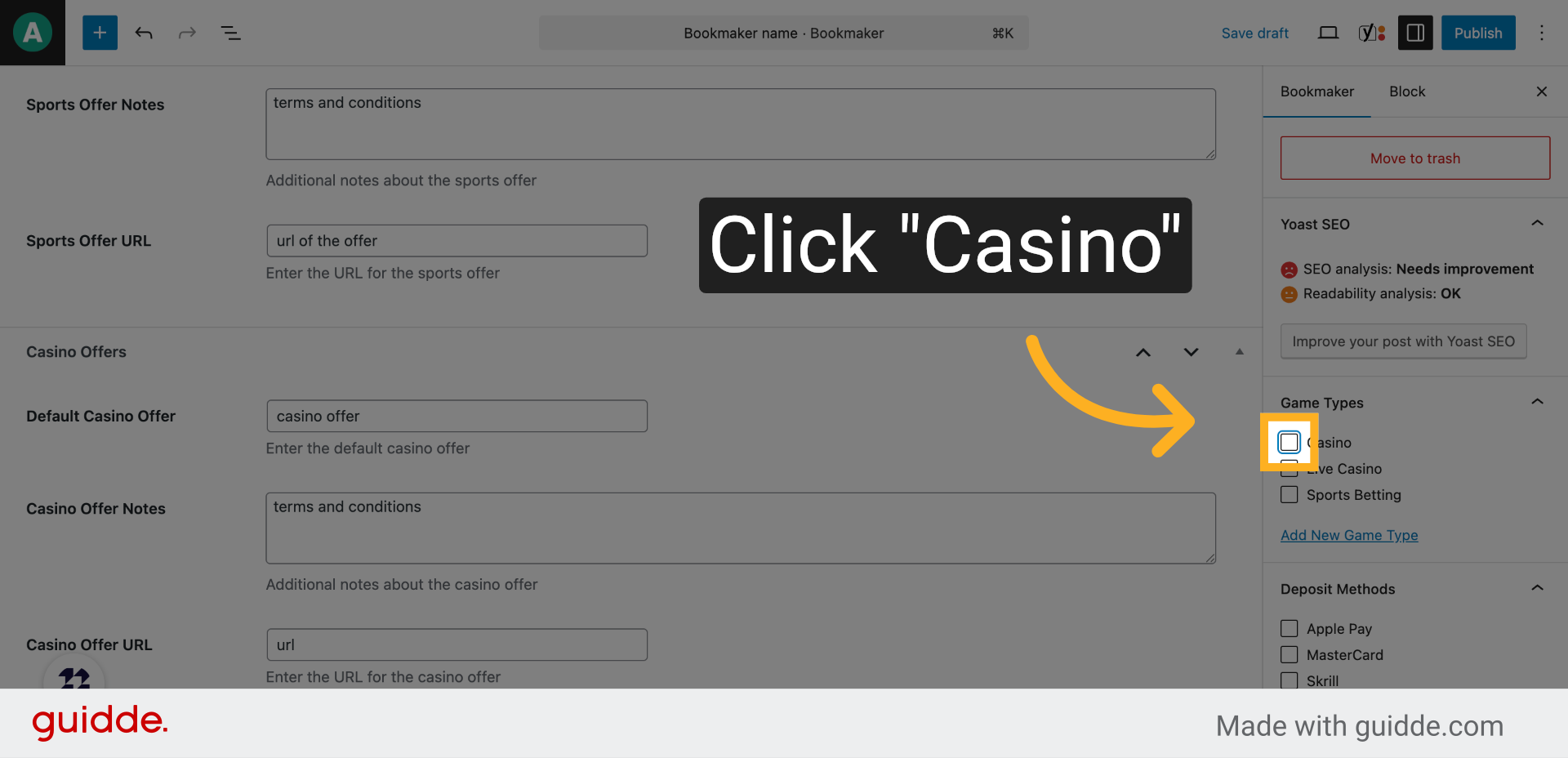
20. Deposit methods
Select the available deposit methods
21. Click “Apple Pay”
Revisit the Apple Pay feature to ensure all related fields are completed.
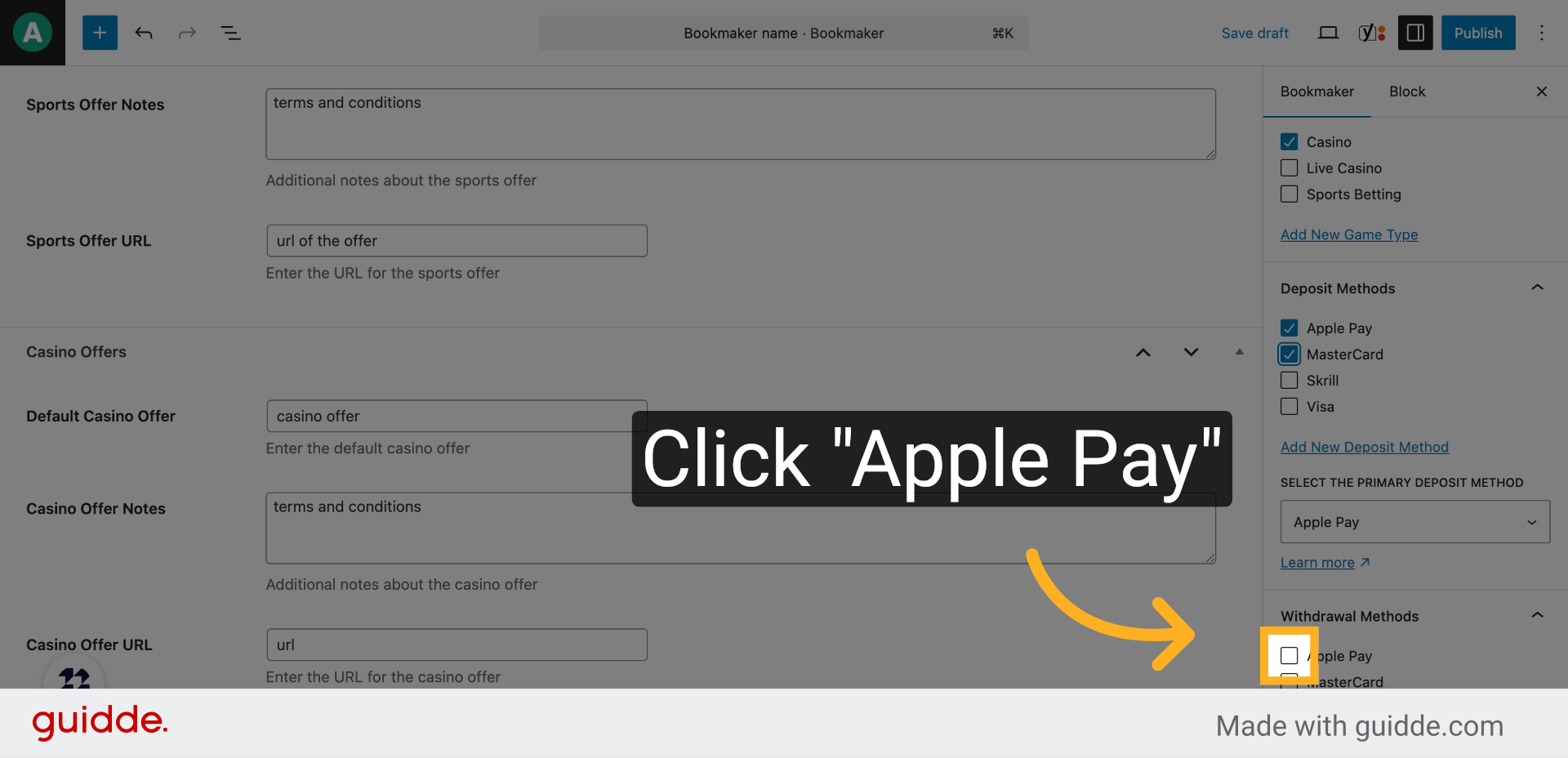
22. Select the withdrwal methods
Fill in any remaining Apple Pay details to fully specify this payment option.
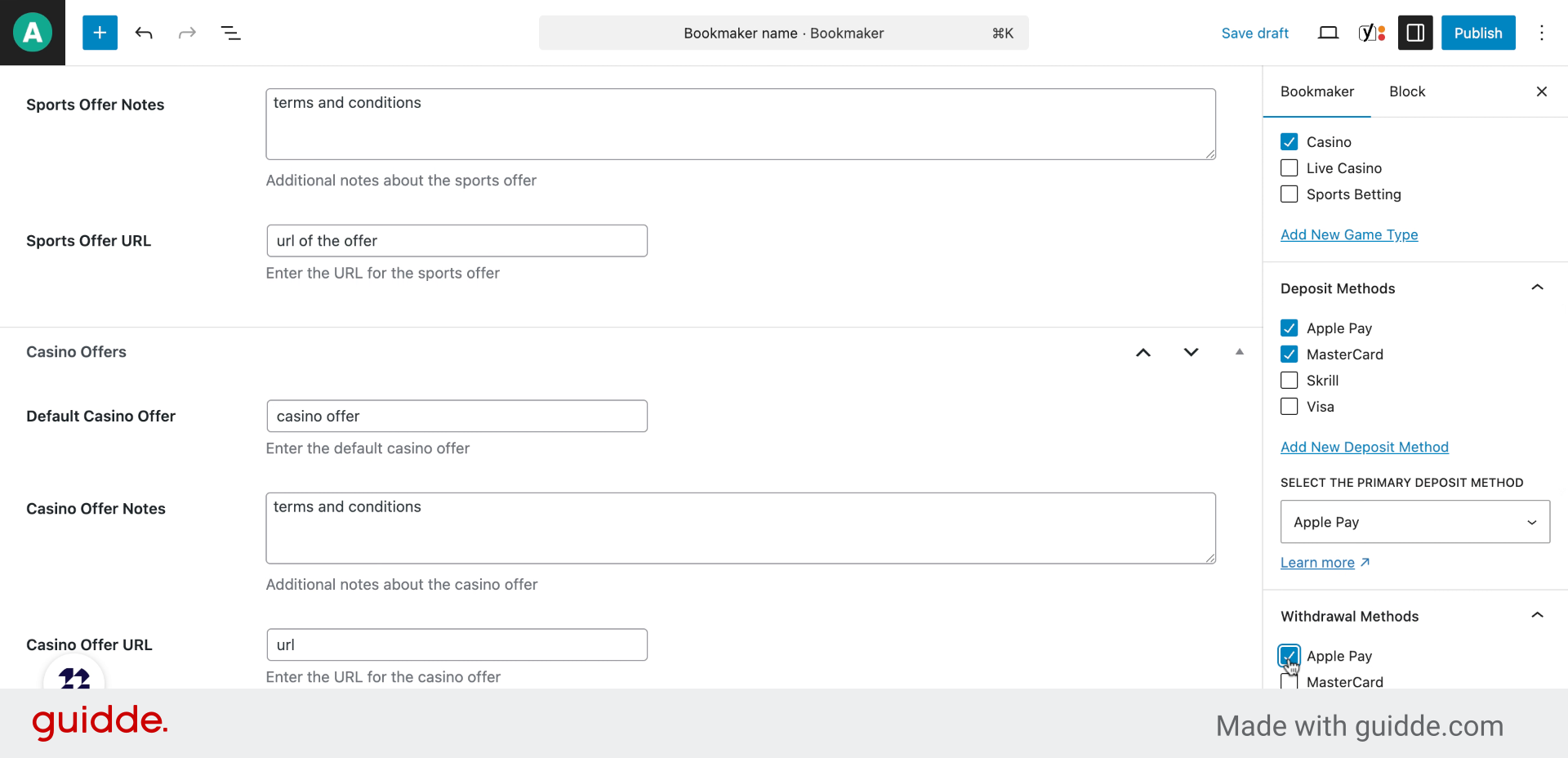
23. Select the available game types
Access the table games feature to specify its presence or rating.
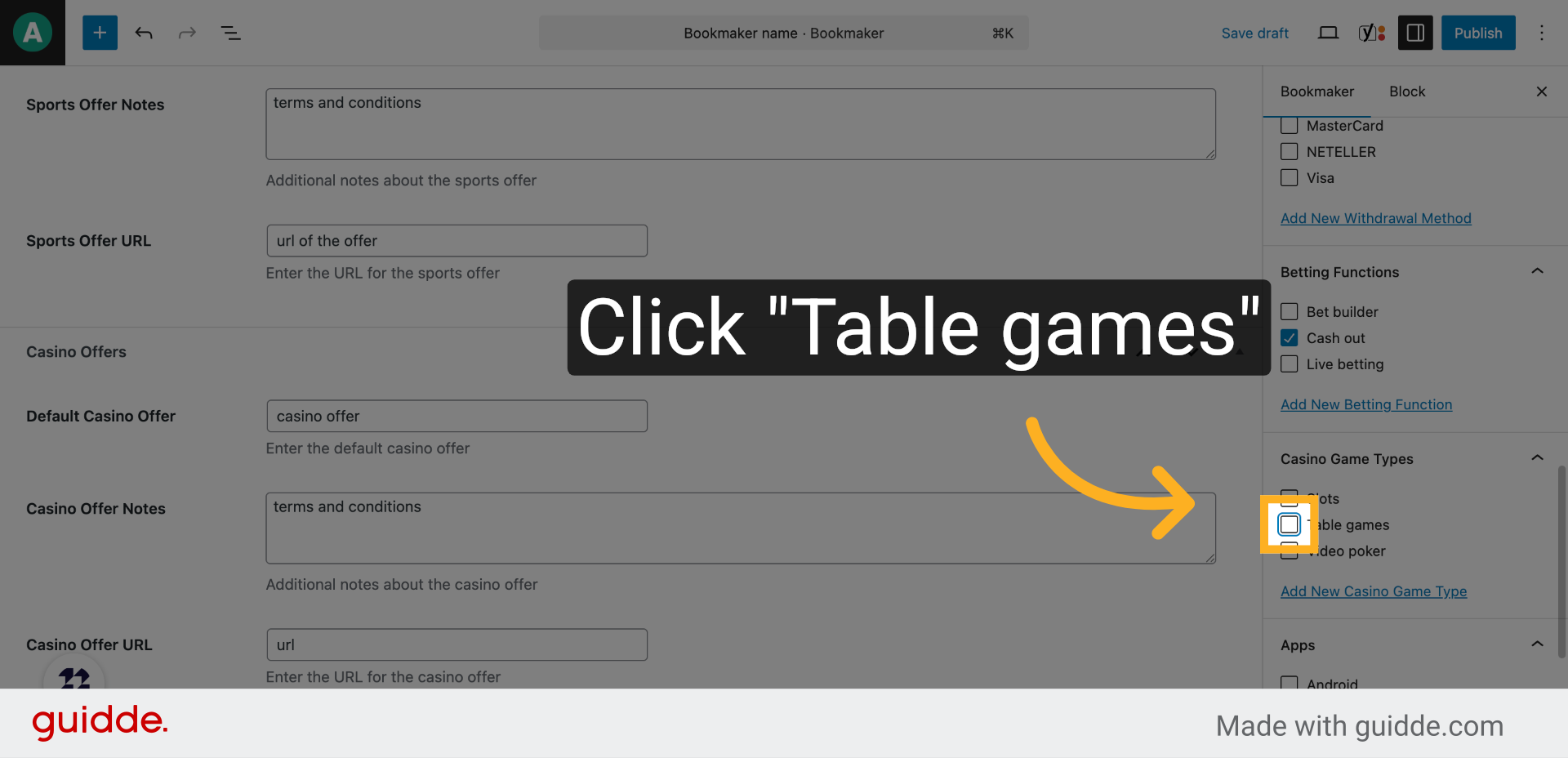
24. Choose if the bookmaker has an application
Locate the Android app feature to specify mobile support.
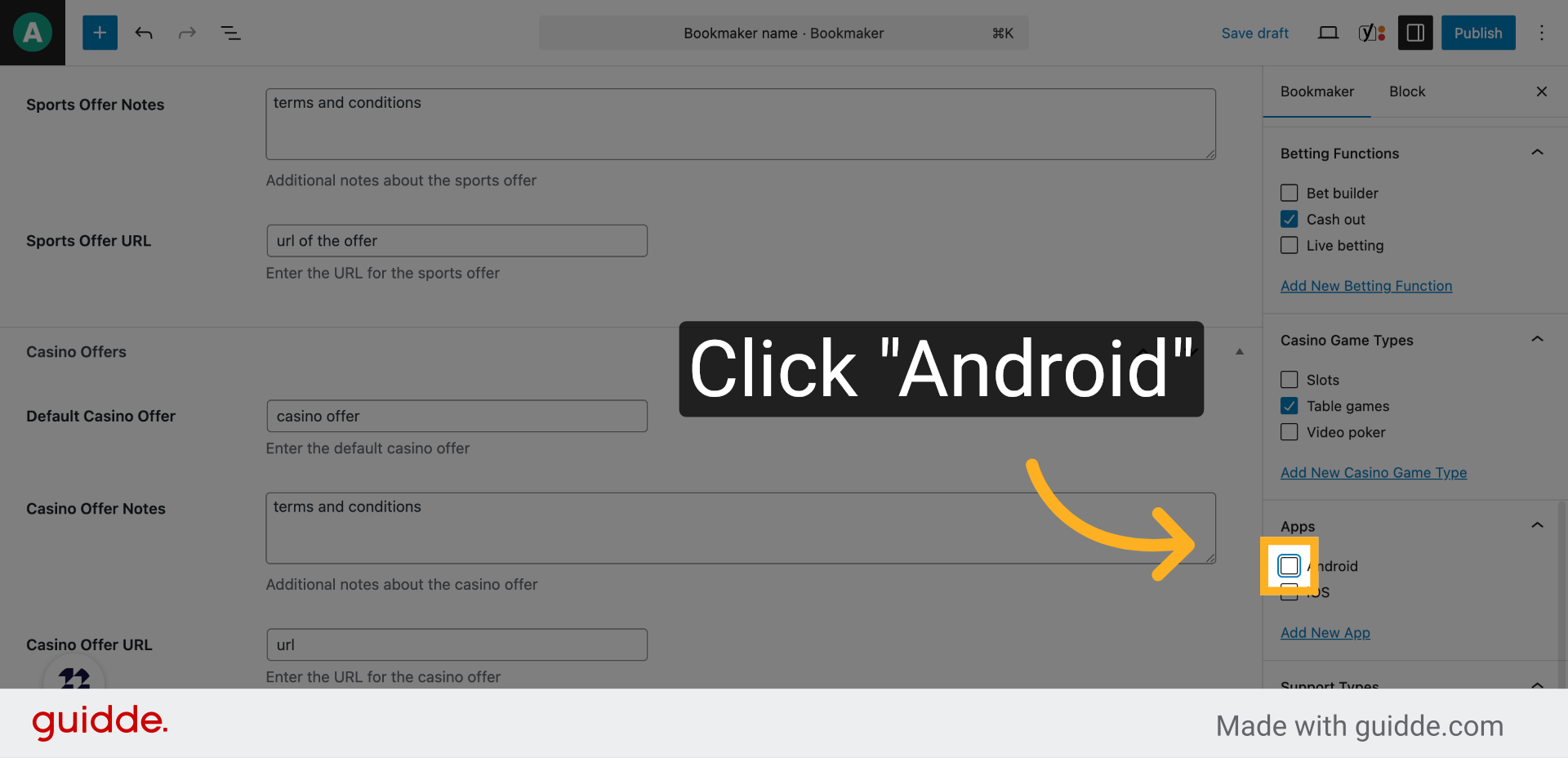
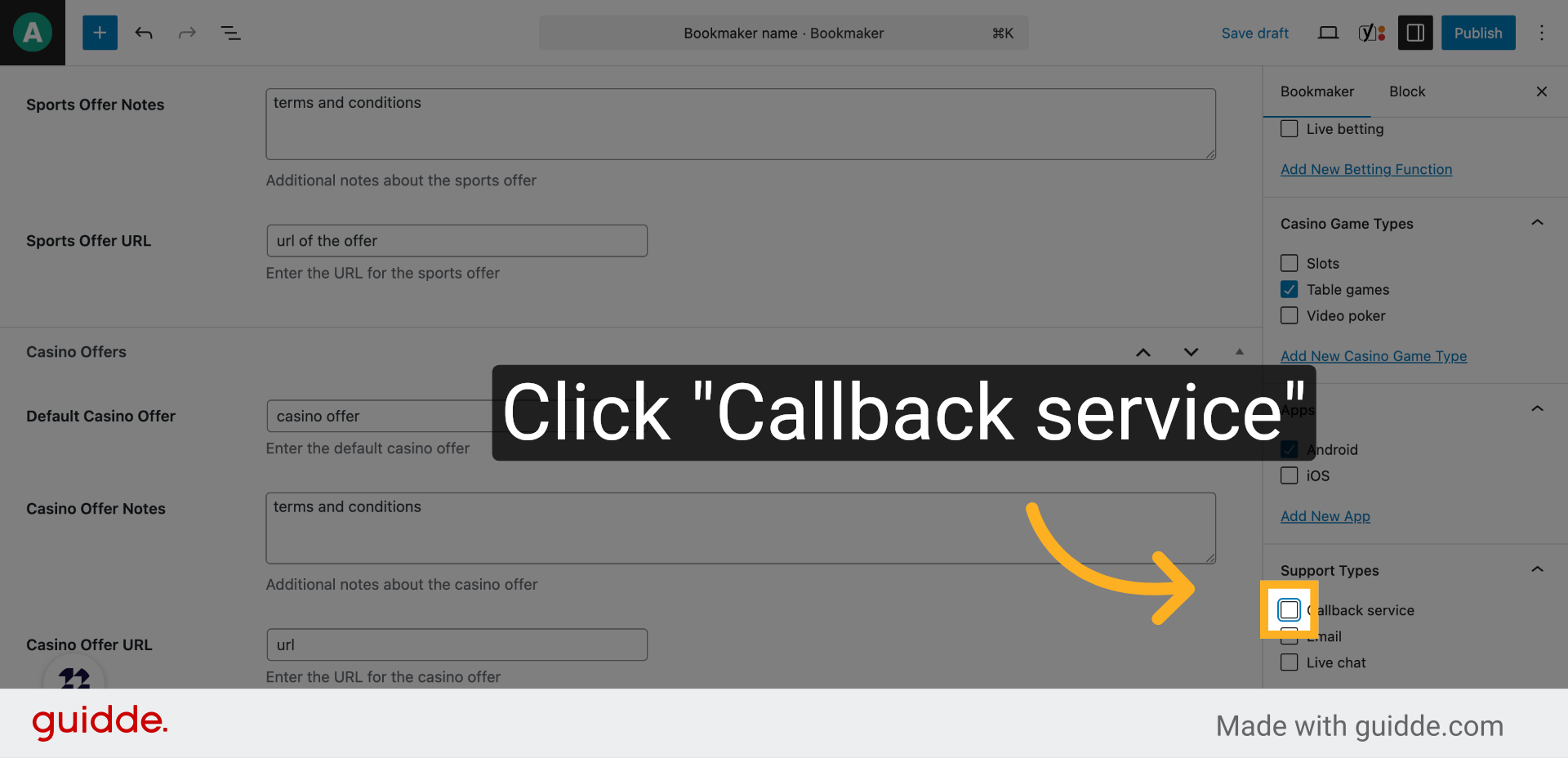
25. Select the types of support
Find the callback service feature to indicate customer support options.
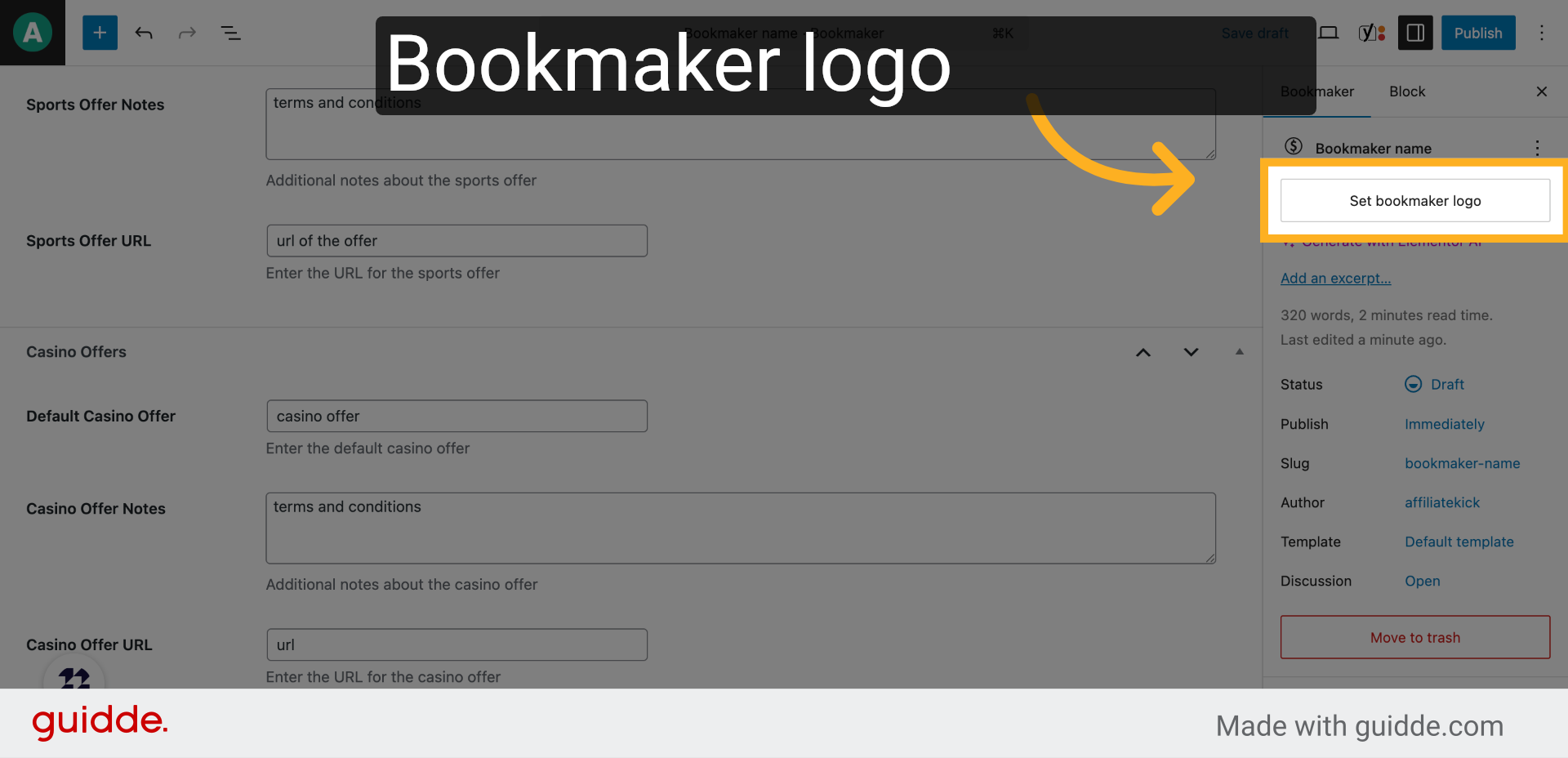
26. Click “Set bookmaker logo”
Initiate the process to upload or set the bookmaker’s logo for branding.
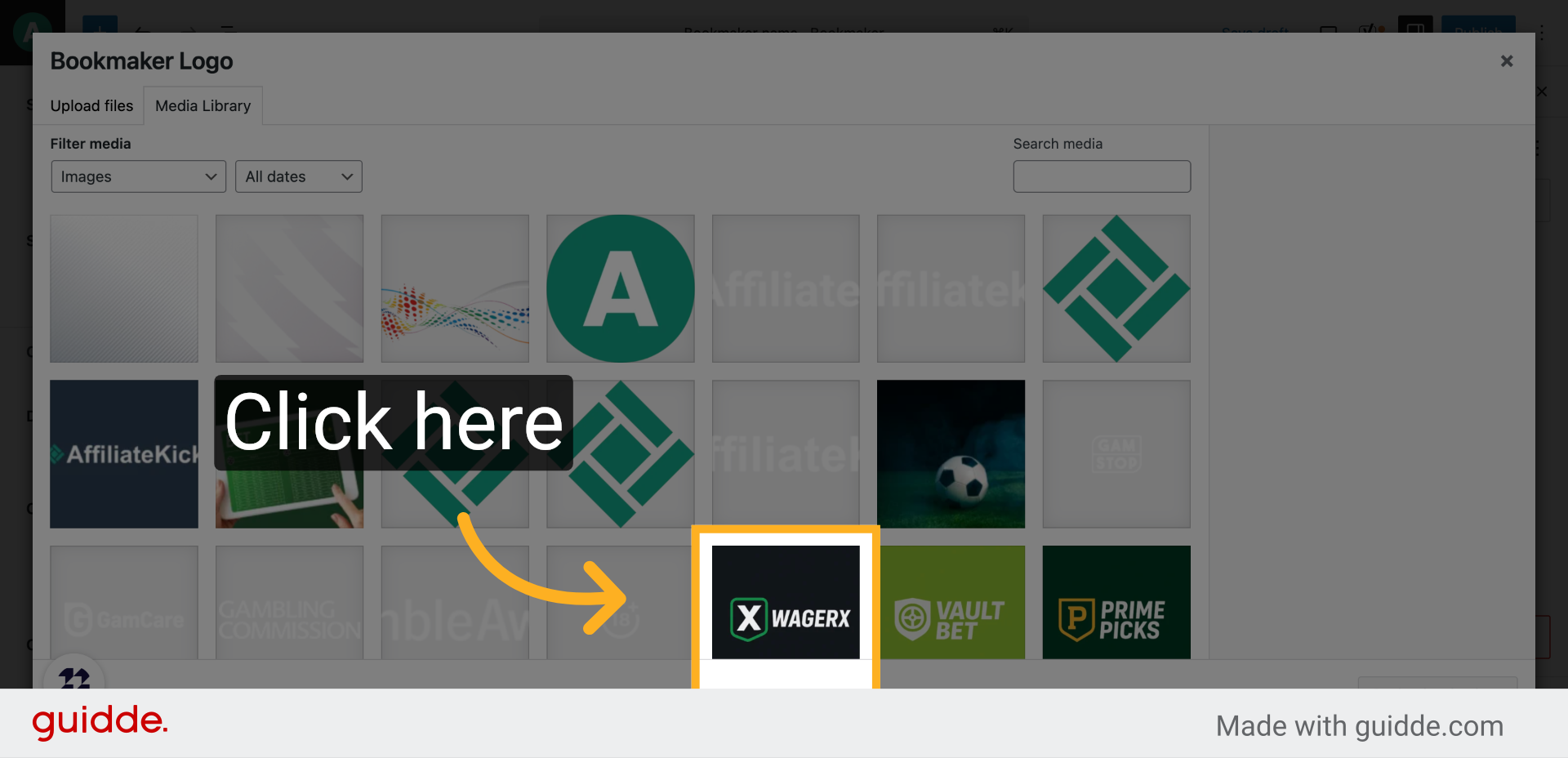
27. Click here
Click the designated area to select an image file for the bookmaker logo.
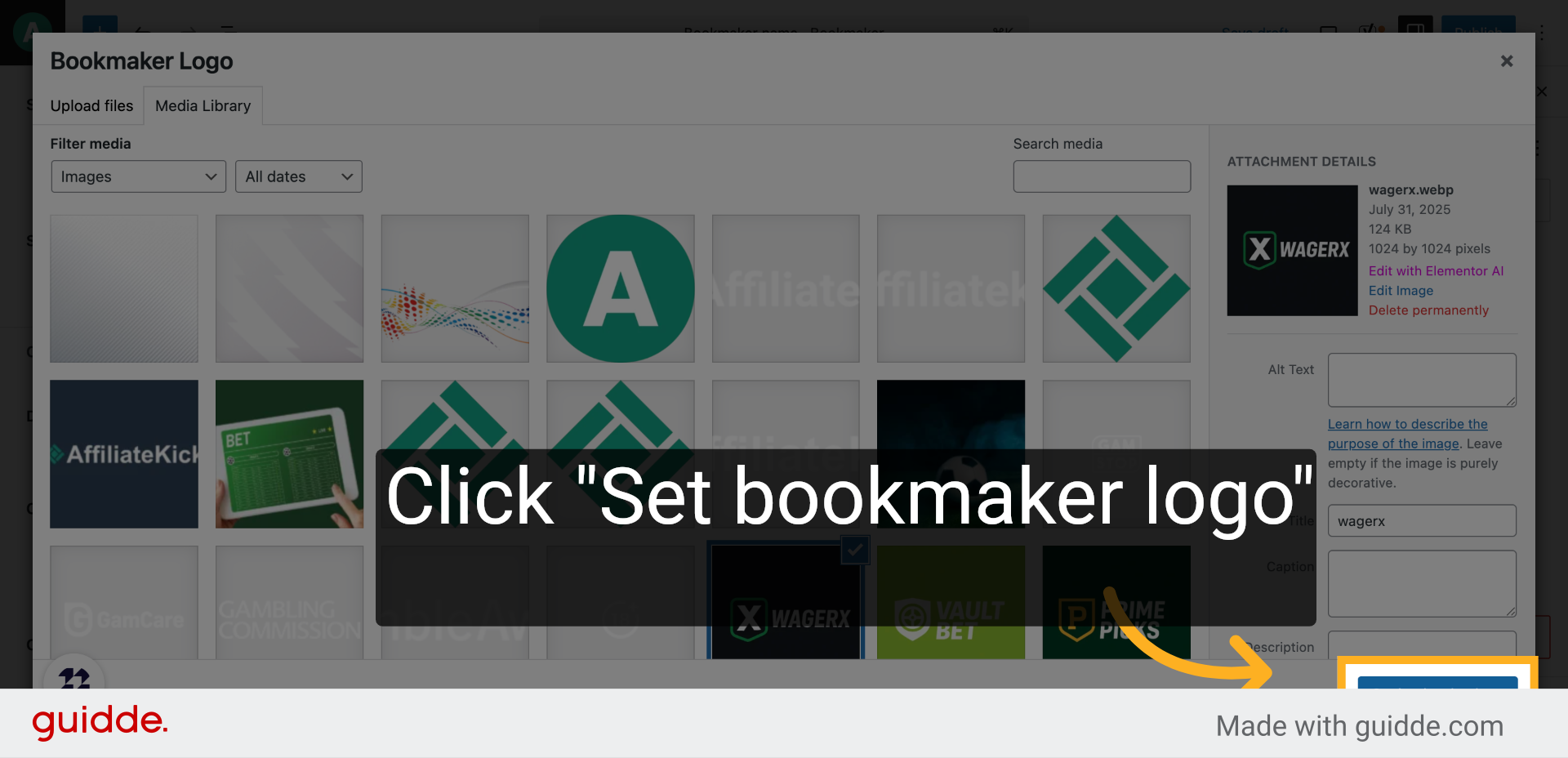
28. Click “Set bookmaker logo”
Confirm the logo selection to apply it to the bookmaker profile.
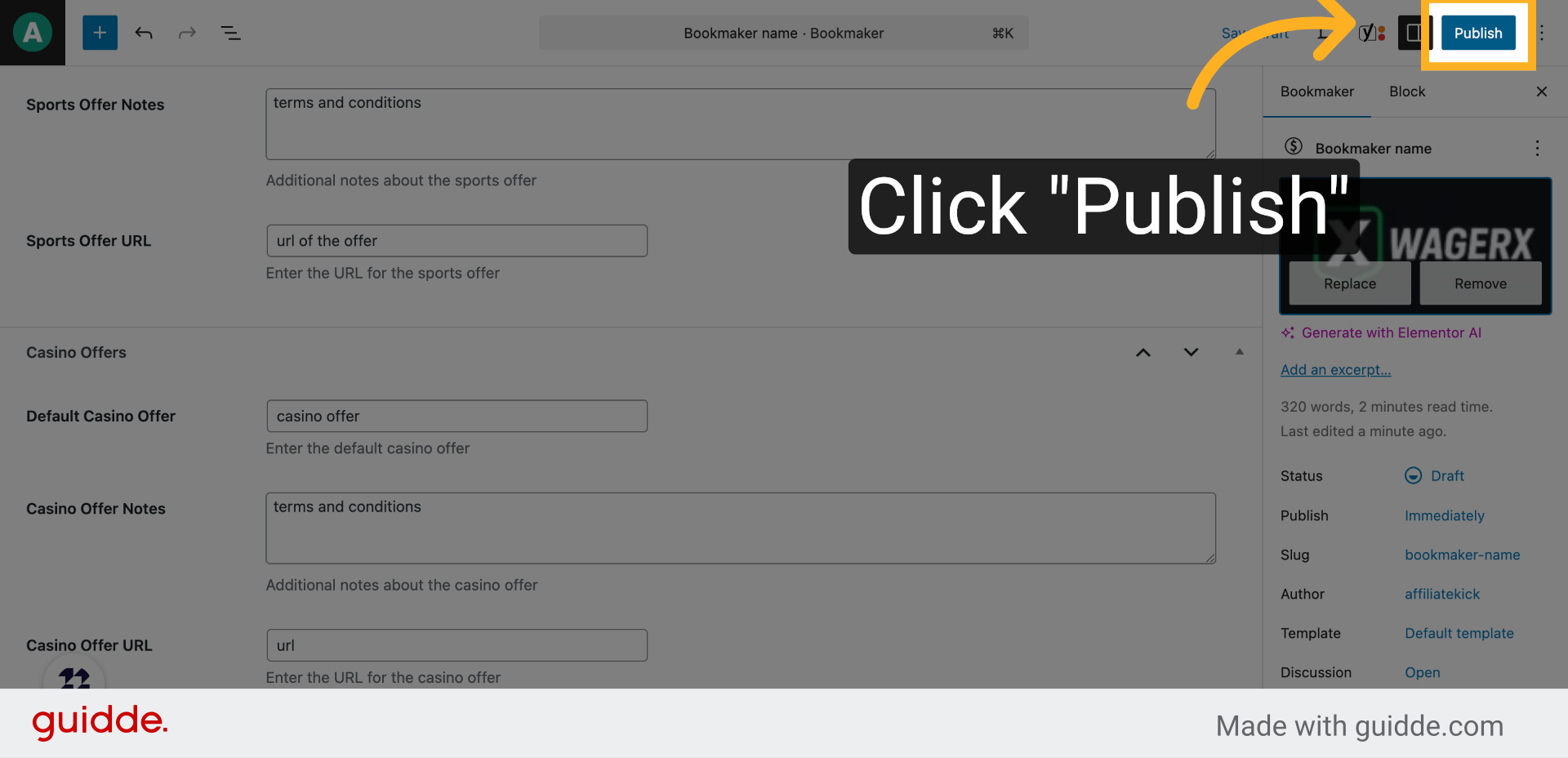
29. Click “Publish”
Finalize the bookmaker entry by clicking the publish button to make it live.
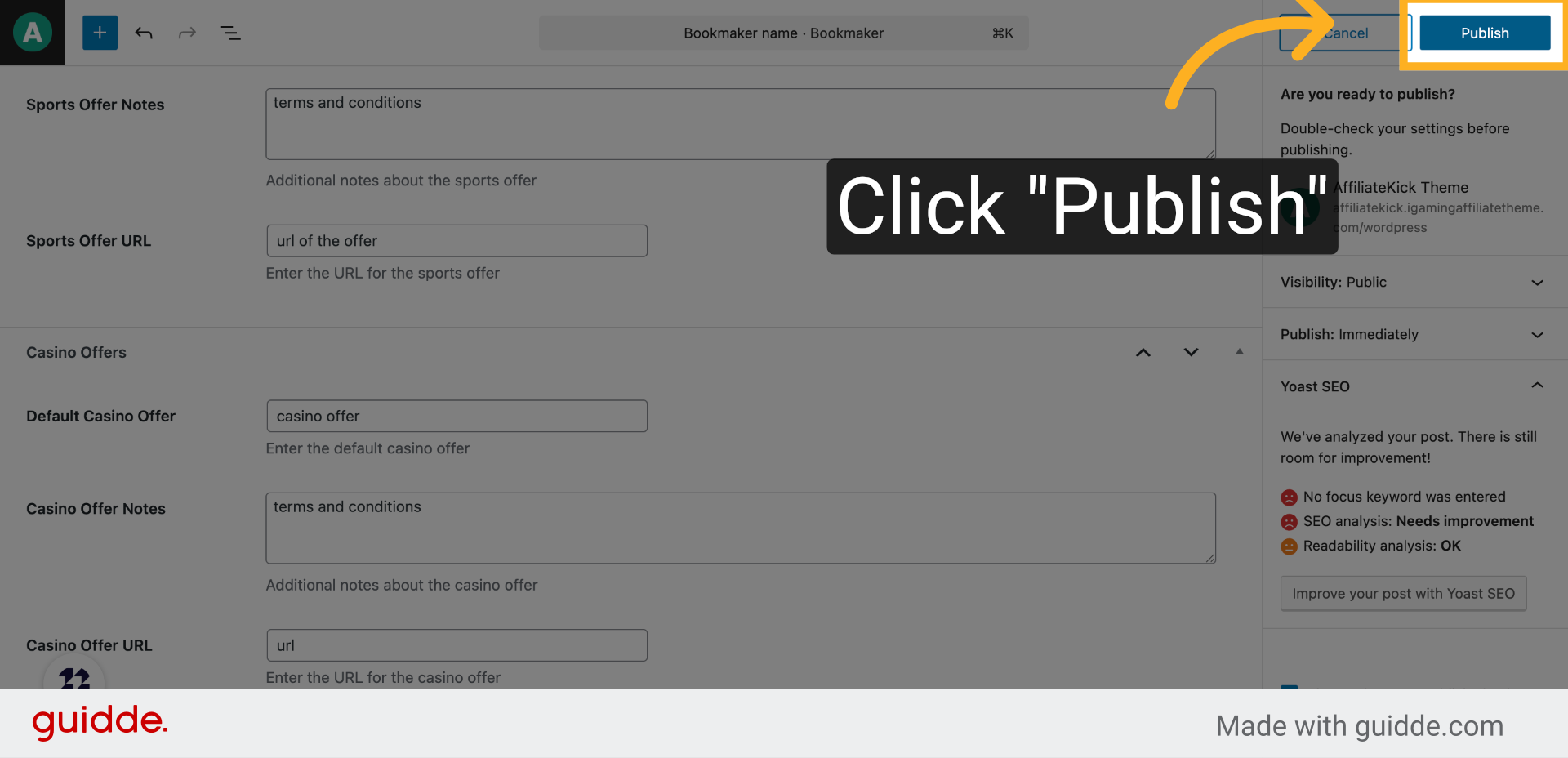
30. Click “Publish”
Confirm the publishing action to complete adding the bookmaker to your site.
This guide walked you through adding a new bookmaker, including entering names, ratings, offers, features, and uploading a logo. You learned how to publish the bookmaker profile with all relevant details for your affiliate site.